

![[PRO Tips] Gold’s Bullish Revival: Seasonal Trends and Key Levels to Watch](https://xinker.org/uploads/images/202412/image_430x256_67724cc6ad0cd.webp)
![[PRO Tips] Gold Market Under Short-Term Pressure, Safe-Haven Demand and Central Bank Buying Support Long-Term Upside Potential](https://xinker.org/uploads/images/202412/image_430x256_676ffb4685287.webp)
![[PRO Tips] Analysis of 9 key points of differentiation strategy! Master differentiation to create a brand advantage that is unique in the world!](https://firebasestorage.googleapis.com/v0/b/xinker-tips.appspot.com/o/article_thumbnails%2Fscaled_differentiation%20strategy.png.png?alt=media&token=a1bfc3d2-e85a-4db7-8a6d-01c7274f8940)
![[PRO Tips] Will REITs regain growth momentum in 2024? 3 REITs ETFs you must know if you want to invest in real estate.](https://firebasestorage.googleapis.com/v0/b/xinker-tips.appspot.com/o/article_thumbnails%2Fscaled_REITs1.png.png?alt=media&token=8af4eb93-33ff-466f-8039-b6555fad52b4)
![[PRO Tips] Complete tutorial on how to make money in Adobe Stock!](https://firebasestorage.googleapis.com/v0/b/xinker-tips.appspot.com/o/article_thumbnails%2Fscaled_tut-adobe1.png.png?alt=media&token=0b2c8cf2-22bd-4142-883e-140ed1cbaf02)
![[Passive Income] Unlock the secret of passive income: 3 steps to apply for Google AdSense](https://xinker.org/uploads/images/202410/image_430x256_6717a4fb3052b.webp)
![[Passive Income] Earn over $200 a day with AI-generated articles!](https://firebasestorage.googleapis.com/v0/b/xinker-tips.appspot.com/o/article_thumbnails%2Fscaled_article1.png.png?alt=media&token=f61bf35b-8553-4719-826d-7360024adc70)
![[Passive Income] Earn over 20 USD per download with AI-generated images!](https://firebasestorage.googleapis.com/v0/b/xinker-tips.appspot.com/o/article_thumbnails%2Fscaled_adobe2.png.png?alt=media&token=3e20e76a-a907-45af-80aa-bf9b3600301f)
![[Passive Income] Earn 10 USD per new download by sharing CapCut!](https://firebasestorage.googleapis.com/v0/b/xinker-tips.appspot.com/o/article_thumbnails%2Fscaled_capcut2.png.png?alt=media&token=a04dec40-1fac-4857-86f2-19a8be02d38e)
![[Passive Income] Use your WiFi to create passive income in 5 minutes, and you can earn 4-6 U per day!](https://firebasestorage.googleapis.com/v0/b/xinker-tips.appspot.com/o/article_thumbnails%2Fscaled_Grassio.webp.png?alt=media&token=7659a95e-0e47-4f27-a17d-c942ac3cf7f4)


![[Business Talk] The Unique Theme of XINKER's Song: Beef Wellington and Business Mastery](https://xinker.org/uploads/images/202410/image_430x256_671afc155f47f.webp)
![[Business Talk] Chagee: Opening 3,500 stores in 6 years](https://xinker.org/uploads/images/202410/image_430x256_671afce80c5f9.webp)

Report an Issue
If you encounter an issue or bug while playing Crimson Desert, please review the information below, which includes a Known Issues notice, and troubleshooting steps and common checks that may help resolve the issue or identify possible causes. If the issue persists and you are unable to find a solution from the information provided, please submit a report using the form below. Thank you for taking the time to report any issues you encounter while playing our game. We truly appreciate every report and will do our best to review and address them as quickly as possible. (Last updated: 2026/03/19 22:00 UTC) Before submitting your report:Check the known issues notice and FAQIf you encounter a gameplay issue or bug, we suggest checking to see if your issue/bug has already been included in the Known Issues notice. Please also review our Frequently Asked Questions notice for answers to the most common questions and guidance that may help resolve basic issues. Known Issues / FAQ Make sure your game is updated to the latest versionThe problem you’re experiencing may have already been resolved.Please make sure to check the latest patch notes and updates in the Announcements section of our website. Announcements To ensure you’re playing the latest version of the game, you can set your platform to automatically receive game updates.PlayStation, Xbox, Steam, and Epic Games will download updates automatically when they’re available.If automatic updates are turned off, you can manually check your game library for any available updates. Keeping your game updated ensures you have access to the latest fixes, improvements, and features. (PC) Ensure your PC meets system requirementsPlease make sure your PC and Mac components meet or exceed the minimum requirements.For more information regarding Crimson Desert’s console, PC, and Mac performance and hardware specifications, check the Performance Specs notice \[[url="https://crimsondesert.pearlabyss.com/News/Notice/Detail?_boardNo=62"]LINK[/url]].MinimumRecommendedRequires a 64-bit processor and operating system OS: Windows 10 64-bit Processor: Ryzen 5 2600X / i5-8500 Memory: 16 GB RAM Graphics: RX 5500 XT / GTX 1060 DirectX: Version 12 Storage: 150 GB available space Sound Card: Windows Compatible Audio Device Additional Notes: SSD required.Requires a 64-bit processor and operating system OS: Windows 10 64-bit Processor: Ryzen 5 5600 / i5-11600K Memory: 16 GB RAM Graphics: RX 6700 XT / RTX 2080 DirectX: Version 12 Storage: 150 GB available space Sound Card: Windows Compatible Audio Device Additional Notes: SSD required. (PC) Verify integrity of game filesSome issues—such as the game not launching, crashes, glitched graphics, or other gameplay problems—may be caused by corrupted game files.If you’re experiencing any of these issues, try verifying the integrity of your game files and then run the game again. Steam Launcher1. In the Library section, right-click on Crimson Desert and select Properties. 2. Go to the Installed Files tab and select Verify integrity of game files. Epic Games Launcher 1. In the Library section, click the three dots next to the game name. 2. Select Manage, then click Verify in the pop-up menu. Note: The verification process may take several minutes to complete. (PC) Update your GPU driversTo ensure optimal performance and stability, make sure you have the latest drivers installed for your graphics hardware. You can download them here: \[[url="https://www.amd.com/en/support/download/drivers.html"]AMD[/url]]\[[url="https://www.nvidia.com/en-us/drivers/"]NVIDIA[/url]] Antivirus and other application-related issuesCertain applications running in the background during the installation or while playing Crimson Desert may interfere with the game’s launch or affect its performance and stability.This includes antivirus software, VPNs, anti-spyware tools, firewalls, security applications, as well as recording or broadcasting software. If you're experiencing issues with Crimson Desert not launching or running properly, try the following:Add an exception for the game in your antivirus software.Verify your game files or reinstall the game to recover any missing or quarantined files. For applications other than antivirus software, you may need to temporarily disable or completely remove the application to resolve the issue.Clean InstallIf you're encountering an issue and none of the other troubleshooting steps have resolved it, you can try performing a clean install of the game.If the problem persists after that, please submit a report using the Pearl Abyss Error Reporting System and the form at the bottom of this page (please refer to the rest of this notice for further details). How to Perform a Clean Install1. Backup Your Save FilesBefore proceeding, make sure to back up your save files to avoid any potential loss. Transfer them to a different hard drive or external device (e.g., USB drive).Your save files are located in the following directories:PC: C:\\Users\
If you encounter an issue or bug while playing Crimson Desert, please review the information below, which includes a Known Issues notice, and troubleshooting steps and common checks that may help resolve the issue or identify possible causes.
If the issue persists and you are unable to find a solution from the information provided, please submit a report using the form below.
Thank you for taking the time to report any issues you encounter while playing our game. We truly appreciate every report and will do our best to review and address them as quickly as possible.
(Last updated: 2026/03/19 22:00 UTC)
Before submitting your report:
If you encounter a gameplay issue or bug, we suggest checking to see if your issue/bug has already been included in the Known Issues notice.
Please also review our Frequently Asked Questions notice for answers to the most common questions and guidance that may help resolve basic issues.
The problem you’re experiencing may have already been resolved.
Please make sure to check the latest patch notes and updates in the Announcements section of our website.
To ensure you’re playing the latest version of the game, you can set your platform to automatically receive game updates.
PlayStation, Xbox, Steam, and Epic Games will download updates automatically when they’re available.
If automatic updates are turned off, you can manually check your game library for any available updates.
Keeping your game updated ensures you have access to the latest fixes, improvements, and features.
Please make sure your PC and Mac components meet or exceed the minimum requirements.
For more information regarding Crimson Desert’s console, PC, and Mac performance and hardware specifications, check the Performance Specs notice \[[url="https://crimsondesert.pearlabyss.com/News/Notice/Detail?_boardNo=62"]LINK[/url]].
Minimum
Recommended
Requires a 64-bit processor and operating system
OS: Windows 10 64-bit
Processor: Ryzen 5 2600X / i5-8500
Memory: 16 GB RAM
Graphics: RX 5500 XT / GTX 1060
DirectX: Version 12
Storage: 150 GB available space
Sound Card: Windows Compatible Audio Device
Additional Notes: SSD required.
Requires a 64-bit processor and operating system
OS: Windows 10 64-bit
Processor: Ryzen 5 5600 / i5-11600K
Memory: 16 GB RAM
Graphics: RX 6700 XT / RTX 2080
DirectX: Version 12
Storage: 150 GB available space
Sound Card: Windows Compatible Audio Device
Additional Notes: SSD required.
Some issues—such as the game not launching, crashes, glitched graphics, or other gameplay problems—may be caused by corrupted game files.
If you’re experiencing any of these issues, try verifying the integrity of your game files and then run the game again.
Steam Launcher
1. In the Library section, right-click on Crimson Desert and select Properties.
2. Go to the Installed Files tab and select Verify integrity of game files.
Epic Games Launcher
1. In the Library section, click the three dots next to the game name.
2. Select Manage, then click Verify in the pop-up menu.
Note: The verification process may take several minutes to complete.
To ensure optimal performance and stability, make sure you have the latest drivers installed for your graphics hardware.
You can download them here:
\[[url="https://www.amd.com/en/support/download/drivers.html"]AMD[/url]]
\[[url="https://www.nvidia.com/en-us/drivers/"]NVIDIA[/url]]
Certain applications running in the background during the installation or while playing Crimson Desert may interfere with the game’s launch or affect its performance and stability.
This includes antivirus software, VPNs, anti-spyware tools, firewalls, security applications, as well as recording or broadcasting software.
If you're experiencing issues with Crimson Desert not launching or running properly, try the following:
Add an exception for the game in your antivirus software.
Verify your game files or reinstall the game to recover any missing or quarantined files.
For applications other than antivirus software, you may need to temporarily disable or completely remove the application to resolve the issue.
If you're encountering an issue and none of the other troubleshooting steps have resolved it, you can try performing a clean install of the game.
If the problem persists after that, please submit a report using the Pearl Abyss Error Reporting System and the form at the bottom of this page (please refer to the rest of this notice for further details).
How to Perform a Clean Install
1. Backup Your Save Files
Before proceeding, make sure to back up your save files to avoid any potential loss. Transfer them to a different hard drive or external device (e.g., USB drive).
Your save files are located in the following directories:
PC: C:\\Users\\\[USER NAME]\\AppData\\Local\\Pearl Abyss\\CD\\save
Mac Steam: ~/Library/Application Support/Pearl Abyss/CD/save
Mac App Store: ~/Library/Containers/com.pearlabyss.CrimsonDesert/Data/Library/Application Support/Pearl Abyss/CD/save
2. Uninstall Crimson Desert
Go to your platform's game client (Steam or Epic Games Launcher), find Crimson Desert, and select Uninstall.
3. Delete Residual Files
Remove the Crimson Desert folder from your Steam or Epic Games Store directory.
Delete the Crimson Desert folder from:
C:\\Users\\\[USER NAME]\\AppData\\Local\\Pearl Abyss\\
(If you don't see the folder, enable Hidden Items under View in File Explorer.)
4. Restart Your PC
Restart your computer to ensure all changes take effect.
5. Reinstall Crimson Desert
Open your game client (Steam or Epic Games) and reinstall Crimson Desert.
If you were not able to resolve your issue using the information above, please submit a report
When submitting your report, please provide as much detail as possible, including the following information:
A detailed description of the issue, including relevant information such as the quest name or location where it occurred
Whether the issue occurs consistently or only occasionally
Any reproduction steps, if the issue happens consistently
What troubleshooting steps you have already tried (e.g., reinstalling the game, using different save files, verifying game files)
(PC) IMPORTANT: Make sure to send us your game files
Providing us with your save or log files allows us to analyze your issue more thoroughly and accurately. There are two ways you can send your files to us:
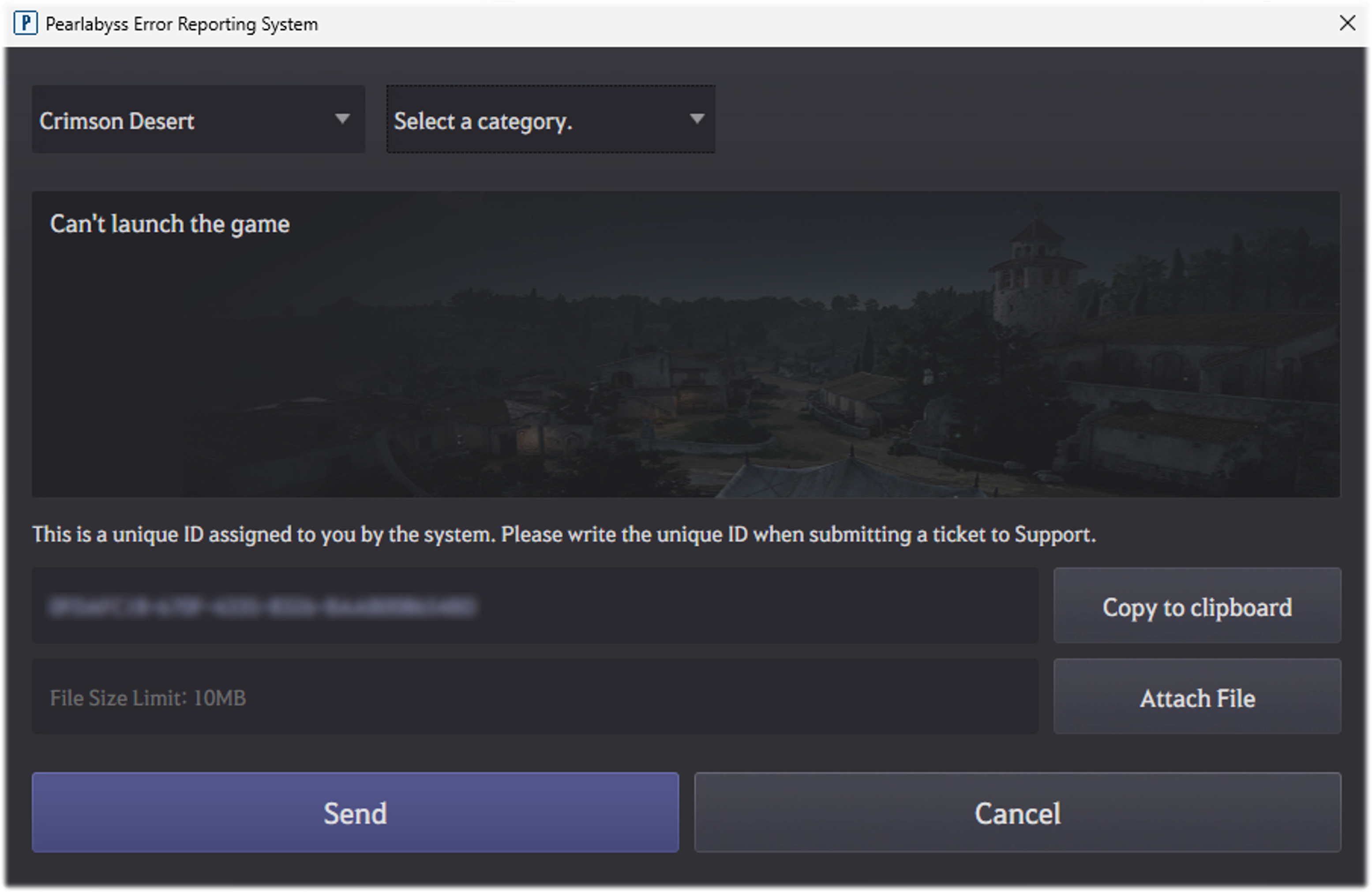
The Pearl Abyss Error Reporting System is an issue reporting tool that lets you automatically send files—such as error dumps, logs, in-game screenshots, and save data—along with your hardware specifications.
How to access the tool:
1. Go to (Steam) In Steam launcher go to Library > right click on Crimson Desert in your game list > Properties > Installed Files > Browse... to open game folder a then go to bin64 folder
(Epic) Go to Crimson Desert\\bin64 folder in C:\\Program Files\\Epic Games
2. Run the PERS.exe file to open the Error Reporting System client.
3. Select the type of issue you’re experiencing, add a short explanation (minimum 10 characters), and click Send.
4. After sending the report, the system will assign you a Unique ID, which will be automatically copied to your clipboard.
5. Once your PERS report is submitted, click the link at the bottom of this notice to open the “Report an issue” survey.
6. Fill in all required information, including the Unique ID that was assigned to you by PERS.
(Since all game files and PC specifications are already submitted through PERS, you do not need to provide this information in the survey or attach any additional game files.)
7. Complete the survey and click “Submit.” Your report is completed.
 We strongly recommend using this method, as it provides us with the most detailed information.
If you are unable to submit your file through the Pearl Abyss Reporting System for any reason, you may instead attach the files manually in the “Attach File” section of the “Report an issue” survey (link below).
Your save and log files can be found in the following directories:
PC: C:\\Users\\\[USER NAME]\\AppData\\Local\\Pearl Abyss\\CD\\save
Mac Steam: ~/Library/Application Support/Pearl Abyss/CD/save
Mac App Store: ~/Library/Containers/com.pearlabyss.CrimsonDesert/Data/Library/Application Support/Pearl Abyss/CD/save
\[[url="https://support.pearlabyss.com/Research?_id=68aea02c2204d3e298fb716830b214e45924983e664a6b4b76c938e49c1b73bd"]Report an issue[/url]]
What's Your Reaction?