

![[PRO Tips] Gold’s Bullish Revival: Seasonal Trends and Key Levels to Watch](https://xinker.org/uploads/images/202412/image_430x256_67724cc6ad0cd.webp)
![[PRO Tips] Gold Market Under Short-Term Pressure, Safe-Haven Demand and Central Bank Buying Support Long-Term Upside Potential](https://xinker.org/uploads/images/202412/image_430x256_676ffb4685287.webp)
![[PRO Tips] Analysis of 9 key points of differentiation strategy! Master differentiation to create a brand advantage that is unique in the world!](https://firebasestorage.googleapis.com/v0/b/xinker-tips.appspot.com/o/article_thumbnails%2Fscaled_differentiation%20strategy.png.png?alt=media&token=a1bfc3d2-e85a-4db7-8a6d-01c7274f8940)
![[PRO Tips] Will REITs regain growth momentum in 2024? 3 REITs ETFs you must know if you want to invest in real estate.](https://firebasestorage.googleapis.com/v0/b/xinker-tips.appspot.com/o/article_thumbnails%2Fscaled_REITs1.png.png?alt=media&token=8af4eb93-33ff-466f-8039-b6555fad52b4)
![[PRO Tips] Complete tutorial on how to make money in Adobe Stock!](https://firebasestorage.googleapis.com/v0/b/xinker-tips.appspot.com/o/article_thumbnails%2Fscaled_tut-adobe1.png.png?alt=media&token=0b2c8cf2-22bd-4142-883e-140ed1cbaf02)
![[Passive Income] Unlock the secret of passive income: 3 steps to apply for Google AdSense](https://xinker.org/uploads/images/202410/image_430x256_6717a4fb3052b.webp)
![[Passive Income] Earn over $200 a day with AI-generated articles!](https://firebasestorage.googleapis.com/v0/b/xinker-tips.appspot.com/o/article_thumbnails%2Fscaled_article1.png.png?alt=media&token=f61bf35b-8553-4719-826d-7360024adc70)
![[Passive Income] Earn over 20 USD per download with AI-generated images!](https://firebasestorage.googleapis.com/v0/b/xinker-tips.appspot.com/o/article_thumbnails%2Fscaled_adobe2.png.png?alt=media&token=3e20e76a-a907-45af-80aa-bf9b3600301f)
![[Passive Income] Earn 10 USD per new download by sharing CapCut!](https://firebasestorage.googleapis.com/v0/b/xinker-tips.appspot.com/o/article_thumbnails%2Fscaled_capcut2.png.png?alt=media&token=a04dec40-1fac-4857-86f2-19a8be02d38e)
![[Passive Income] Use your WiFi to create passive income in 5 minutes, and you can earn 4-6 U per day!](https://firebasestorage.googleapis.com/v0/b/xinker-tips.appspot.com/o/article_thumbnails%2Fscaled_Grassio.webp.png?alt=media&token=7659a95e-0e47-4f27-a17d-c942ac3cf7f4)


![[Business Talk] The Unique Theme of XINKER's Song: Beef Wellington and Business Mastery](https://xinker.org/uploads/images/202410/image_430x256_671afc155f47f.webp)
![[Business Talk] Chagee: Opening 3,500 stores in 6 years](https://xinker.org/uploads/images/202410/image_430x256_671afce80c5f9.webp)

Update Announcement (v1.5.0)
The game will be updated to version 1.5.0.The version number can be viewed in game from the version selection screen or the enhanced version title screen.EnhancedNew FeaturesNew Game + has been added. This feature allows you to start a new game with unit levels, item data, and more carried over from a previously completed playthrough.The Zodiac Compatibility function has been added. You may now check a unit's zodiac sign and compatibility from its status screen.AdjustmentsWhen selecting a tile to move to or target with an ability, you may now check the status of a unit under the selection cursor."Remove All Equipment" has been added to the Equipment & Abilities section of the unit status screen.Job unlock conditions are now displayed more clearly for those currently locked, via the Job section of the unit status screen.During battle, the camera angle and zoom settings are now retained for the entirety of that battle.New SettingsThe "Maintain Auto-proceed" setting for cutscenes has been added. To activate it, go to the main menu's Options tab, followed by Settings, then Gameplay, and use the "Maintain Auto-proceed" toggle.The "Ability Incantations Guaranteed" setting has been added, which ensures that dialogue spoken when using certain abilities is always performed. To activate it, go to the main menu's Options tab, followed by Settings, then Gameplay, and use the "Ability Incantations Guaranteed" toggle.The "Ability Cursor Memory" setting has been added, which retains the cursor position in the Abilities section of the battle menu. To activate it, go to the main menu's Options tab, followed by Settings, then Gameplay, and use the "Ability Cursor Memory" toggle.Minor text changes have been made in all languages.Certain sound effects have been adjusted.Overall stability has been improved.Other minor issues have been resolved.New LanguagesThe enhanced version now includes text support for Simplified Chinese, Traditional Chinese, and Korean.To change the enhanced version text language, go to the General Settings menu's Language tab and select a language from ""Text Language (Enhanced).""
The game will be updated to version 1.5.0.
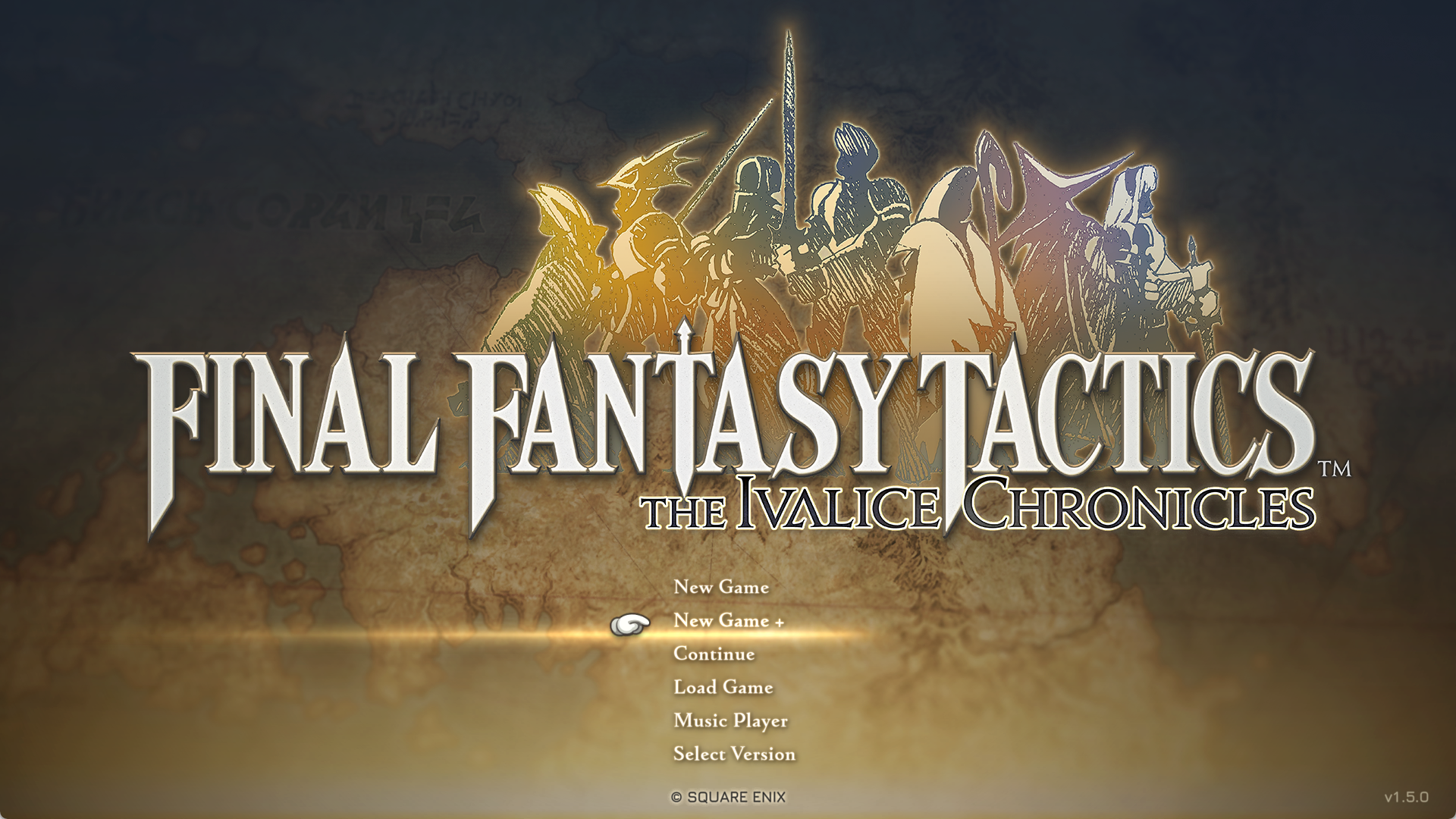
The version number can be viewed in game from the version selection screen or the enhanced version title screen.
New Game + has been added. This feature allows you to start a new game with unit levels, item data, and more carried over from a previously completed playthrough.
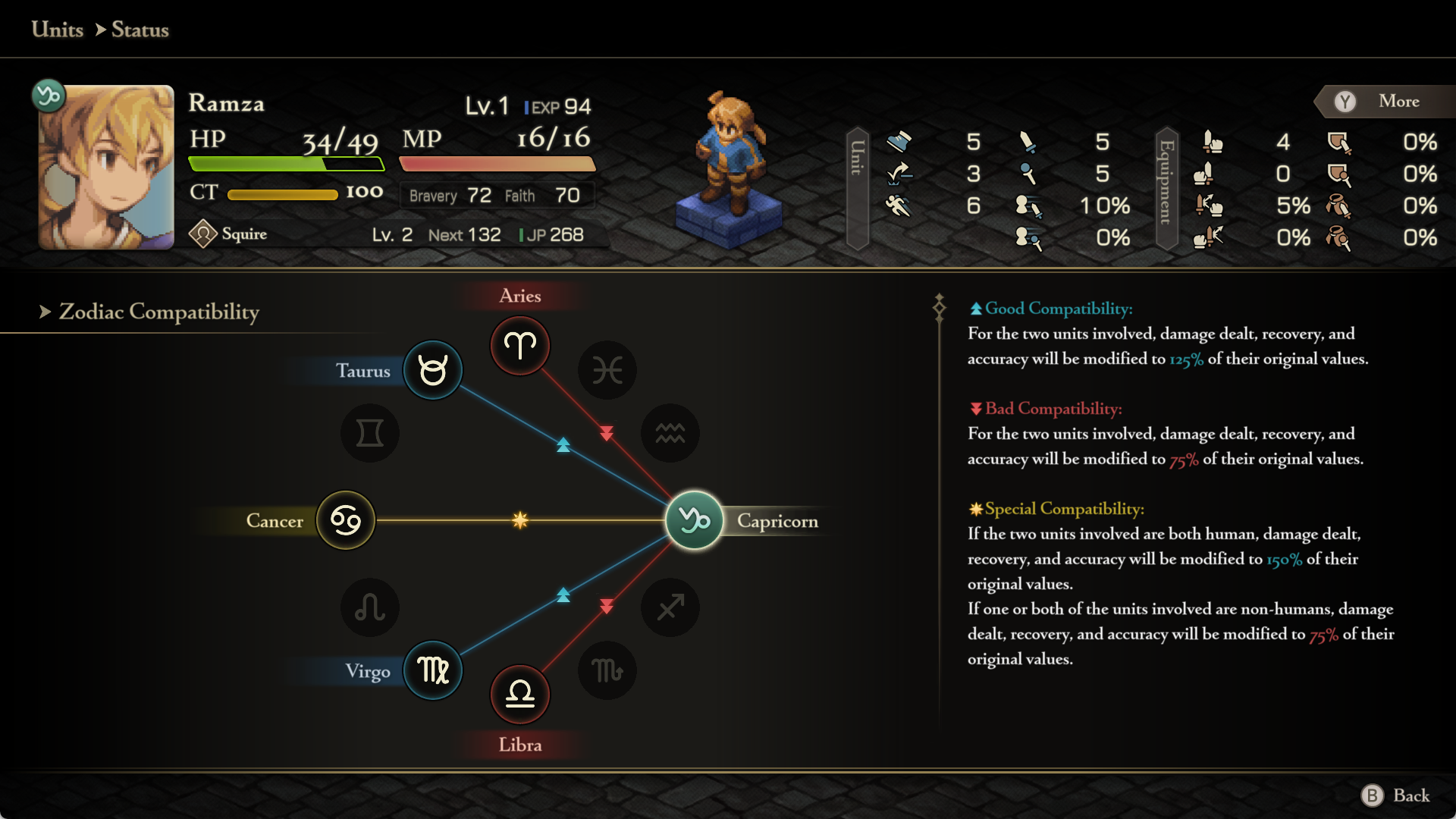
The Zodiac Compatibility function has been added. You may now check a unit's zodiac sign and compatibility from its status screen.
When selecting a tile to move to or target with an ability, you may now check the status of a unit under the selection cursor.
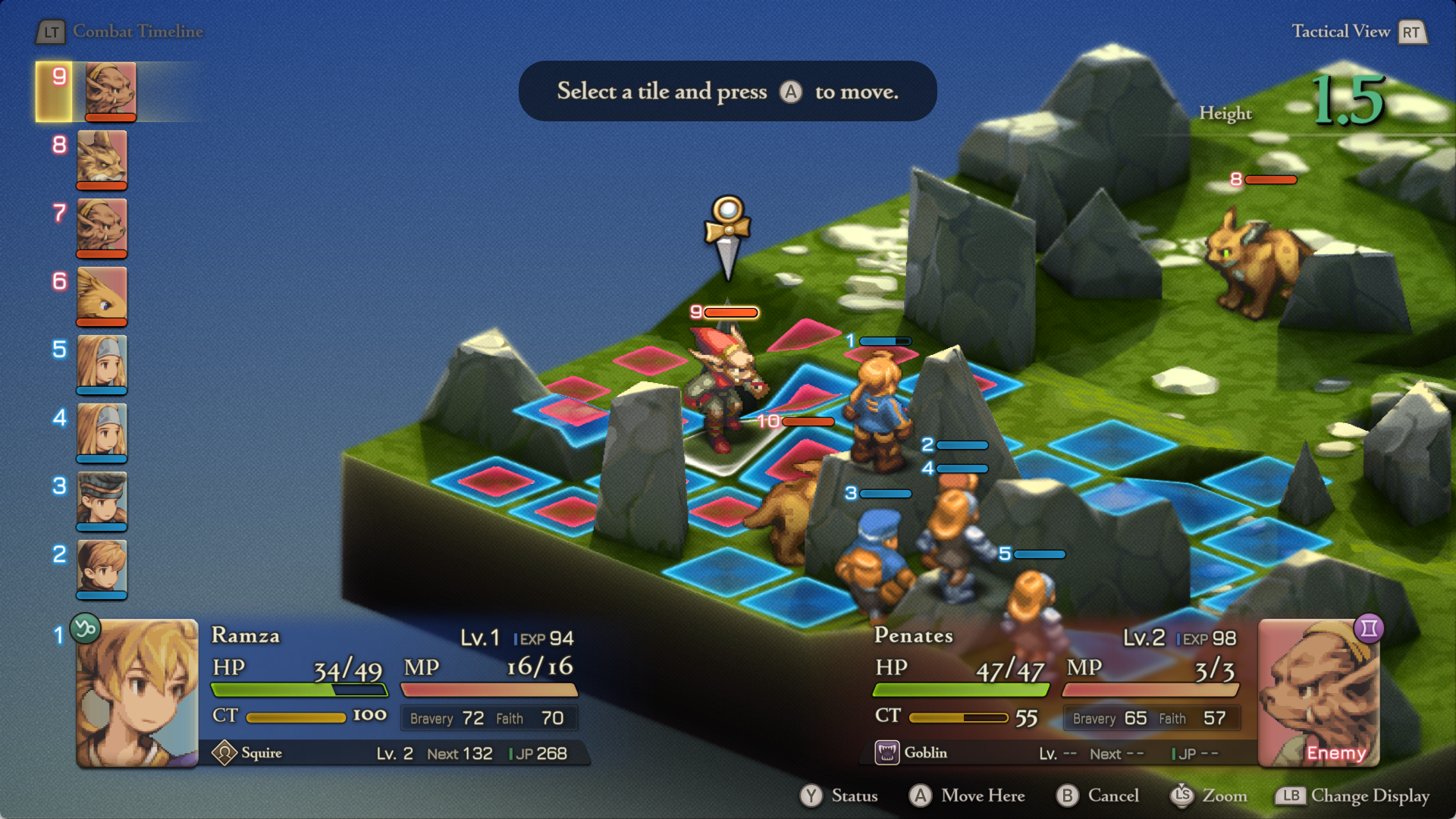
"Remove All Equipment" has been added to the Equipment & Abilities section of the unit status screen.
Job unlock conditions are now displayed more clearly for those currently locked, via the Job section of the unit status screen.
During battle, the camera angle and zoom settings are now retained for the entirety of that battle.
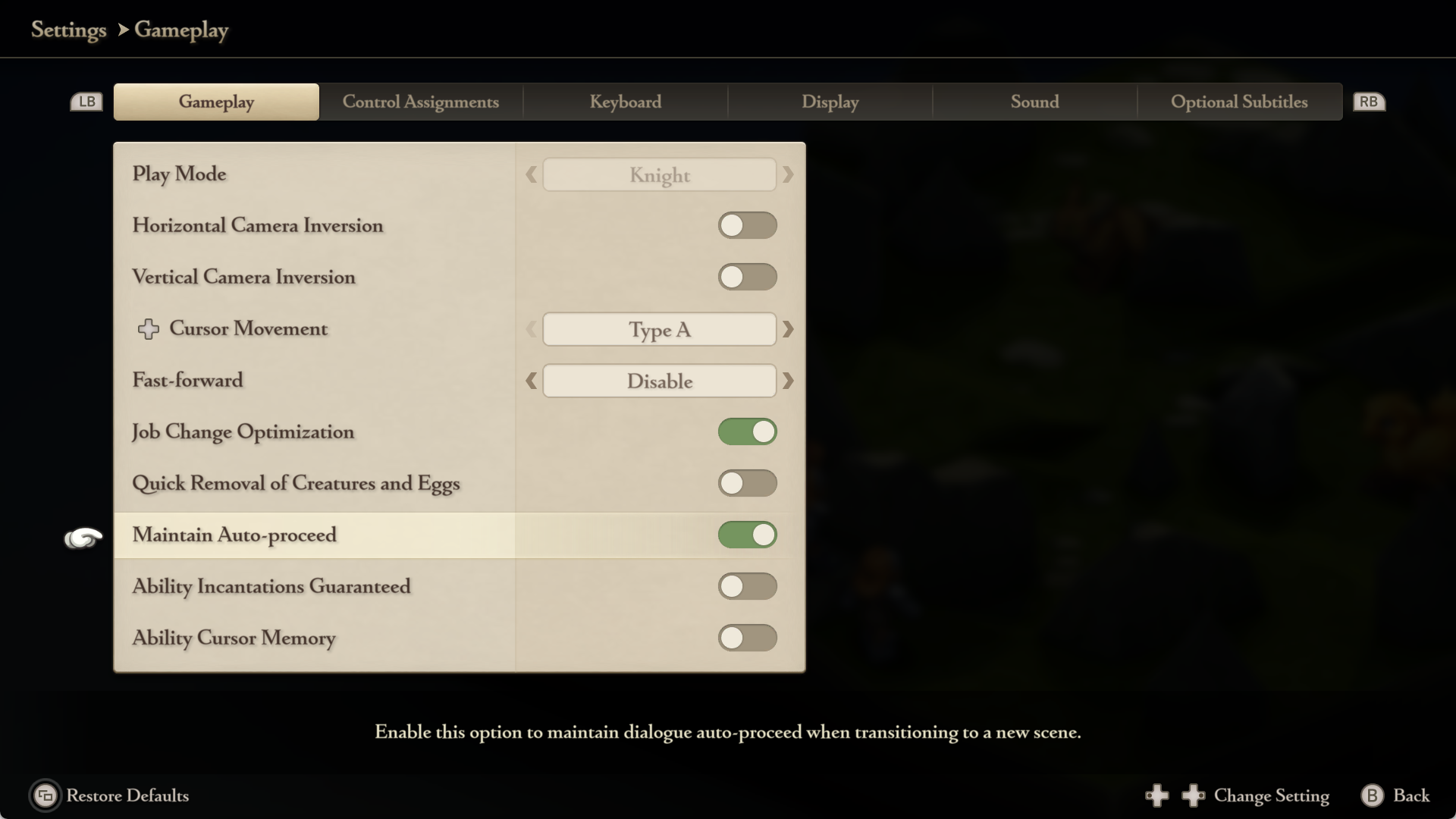
The "Maintain Auto-proceed" setting for cutscenes has been added. To activate it, go to the main menu's Options tab, followed by Settings, then Gameplay, and use the "Maintain Auto-proceed" toggle.
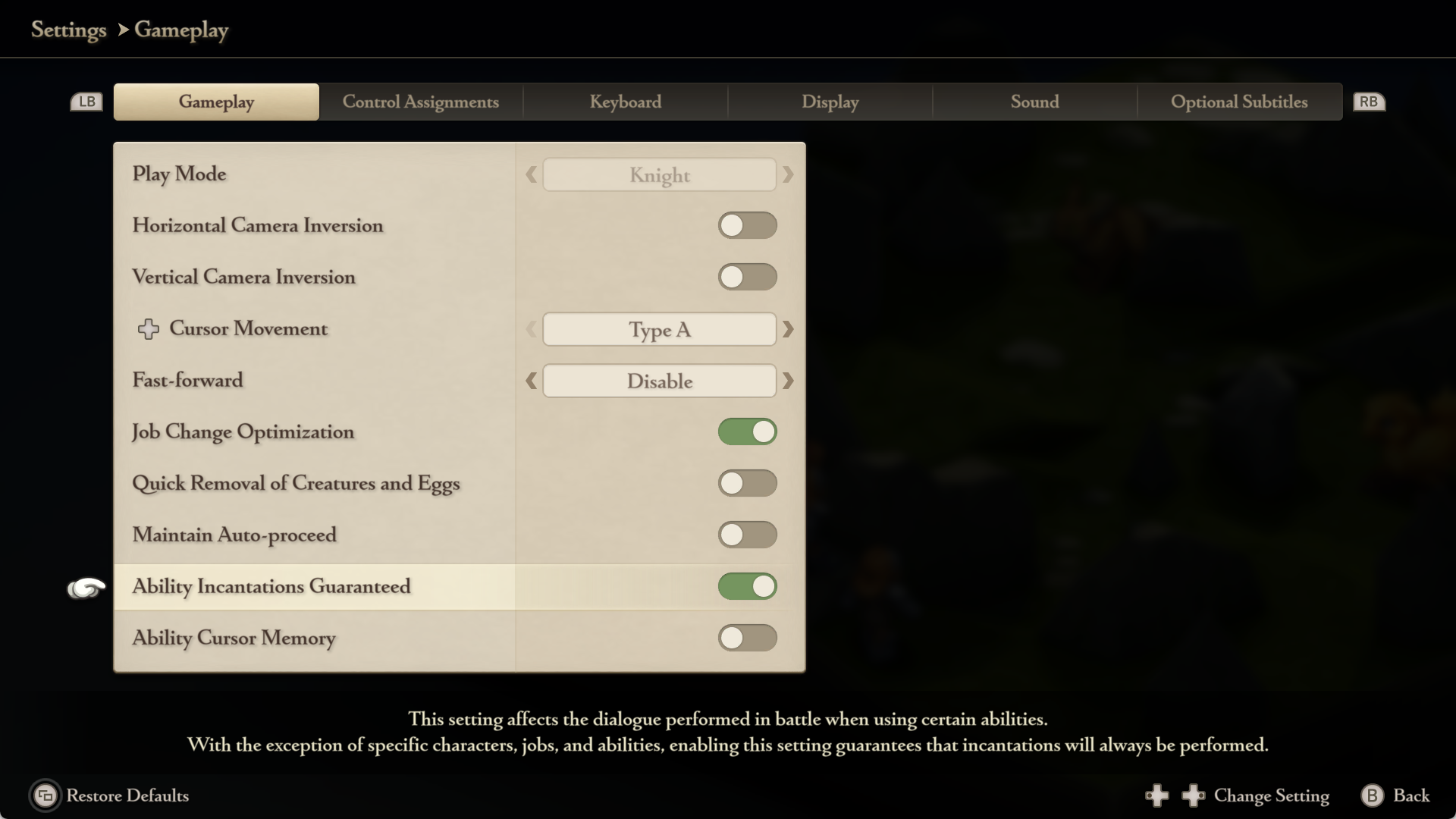
The "Ability Incantations Guaranteed" setting has been added, which ensures that dialogue spoken when using certain abilities is always performed. To activate it, go to the main menu's Options tab, followed by Settings, then Gameplay, and use the "Ability Incantations Guaranteed" toggle.
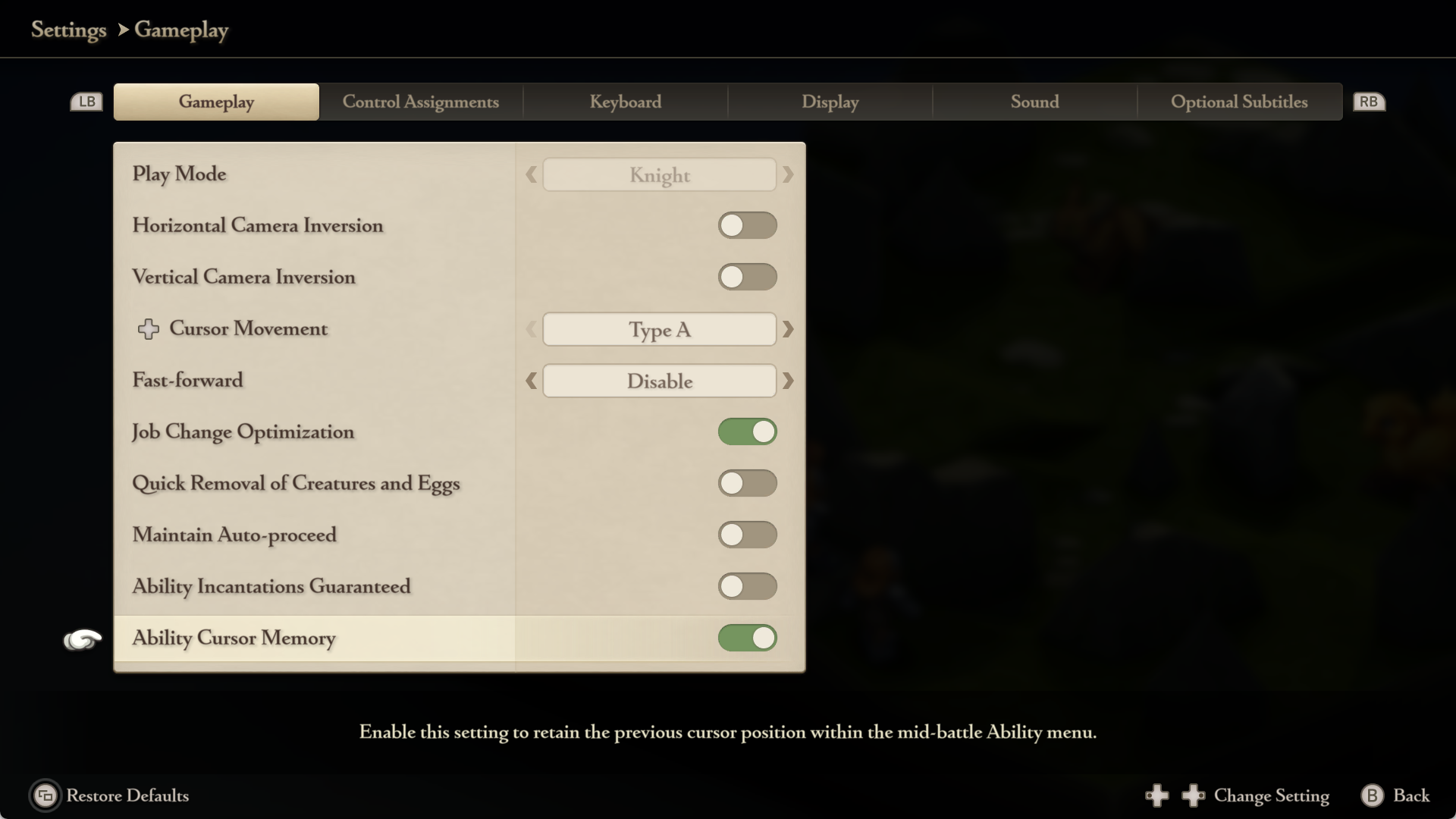
The "Ability Cursor Memory" setting has been added, which retains the cursor position in the Abilities section of the battle menu. To activate it, go to the main menu's Options tab, followed by Settings, then Gameplay, and use the "Ability Cursor Memory" toggle.
Minor text changes have been made in all languages.
Certain sound effects have been adjusted.
Overall stability has been improved.
Other minor issues have been resolved.
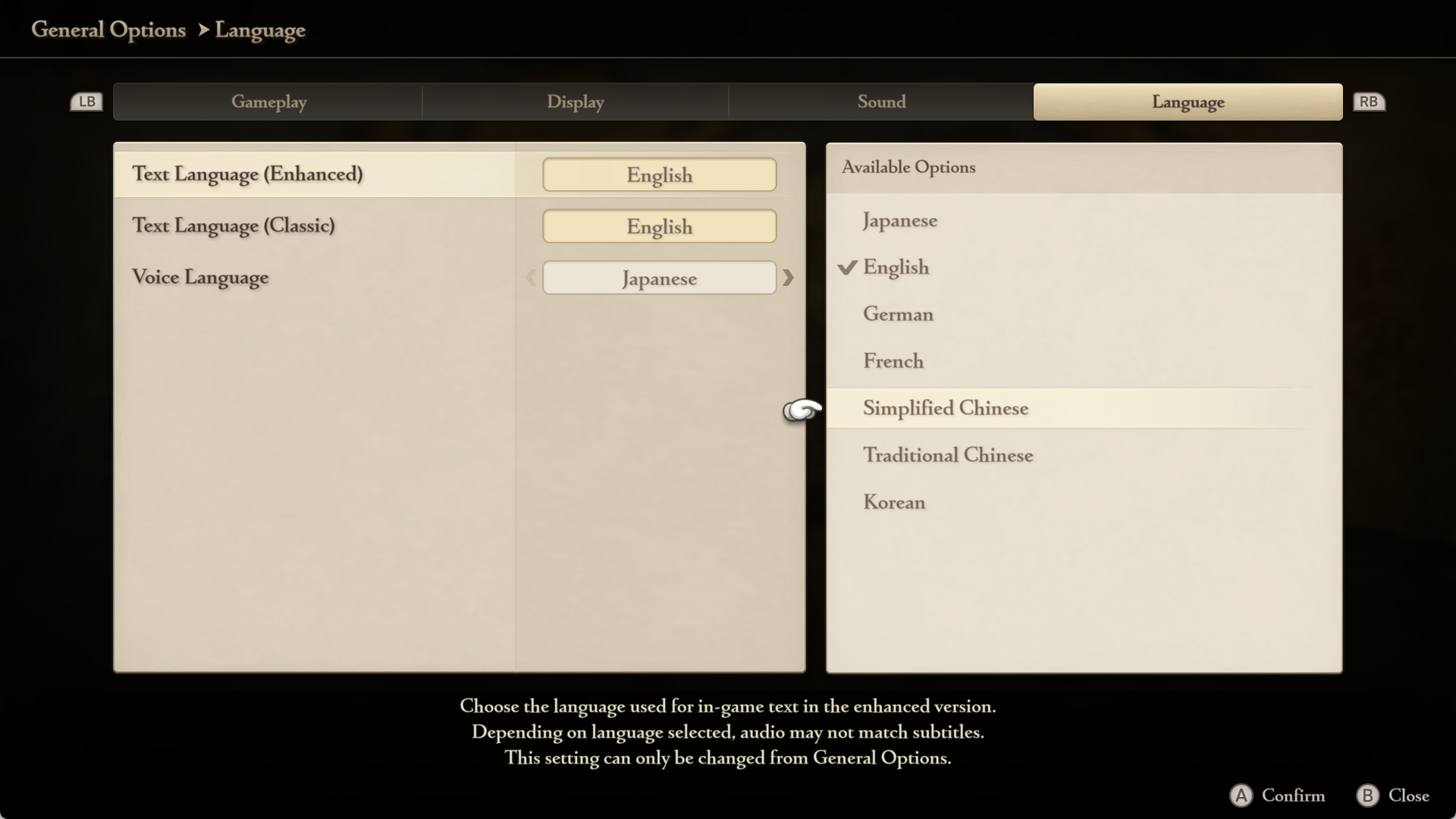
The enhanced version now includes text support for Simplified Chinese, Traditional Chinese, and Korean.
To change the enhanced version text language, go to the General Settings menu's Language tab and select a language from ""Text Language (Enhanced).""
What's Your Reaction?











![[Business Talk] Chagee: Opening 3,500 stores in 6 years](https://xinker.org/uploads/images/202410/image_140x98_671afce94bf91.webp)