![[S2 Preview #4] Myth of Empires: Throne](https://clan.fastly.steamstatic.com/images/46062407/66f84126fb97b9e2d7b777c98eeb05925b2bc71e.png?#)


![[PRO Tips] Gold’s Bullish Revival: Seasonal Trends and Key Levels to Watch](https://xinker.org/uploads/images/202412/image_430x256_67724cc6ad0cd.webp)
![[PRO Tips] Gold Market Under Short-Term Pressure, Safe-Haven Demand and Central Bank Buying Support Long-Term Upside Potential](https://xinker.org/uploads/images/202412/image_430x256_676ffb4685287.webp)
![[PRO Tips] Analysis of 9 key points of differentiation strategy! Master differentiation to create a brand advantage that is unique in the world!](https://firebasestorage.googleapis.com/v0/b/xinker-tips.appspot.com/o/article_thumbnails%2Fscaled_differentiation%20strategy.png.png?alt=media&token=a1bfc3d2-e85a-4db7-8a6d-01c7274f8940)
![[PRO Tips] Will REITs regain growth momentum in 2024? 3 REITs ETFs you must know if you want to invest in real estate.](https://firebasestorage.googleapis.com/v0/b/xinker-tips.appspot.com/o/article_thumbnails%2Fscaled_REITs1.png.png?alt=media&token=8af4eb93-33ff-466f-8039-b6555fad52b4)
![[PRO Tips] Complete tutorial on how to make money in Adobe Stock!](https://firebasestorage.googleapis.com/v0/b/xinker-tips.appspot.com/o/article_thumbnails%2Fscaled_tut-adobe1.png.png?alt=media&token=0b2c8cf2-22bd-4142-883e-140ed1cbaf02)
![[Passive Income] Unlock the secret of passive income: 3 steps to apply for Google AdSense](https://xinker.org/uploads/images/202410/image_430x256_6717a4fb3052b.webp)
![[Passive Income] Earn over $200 a day with AI-generated articles!](https://firebasestorage.googleapis.com/v0/b/xinker-tips.appspot.com/o/article_thumbnails%2Fscaled_article1.png.png?alt=media&token=f61bf35b-8553-4719-826d-7360024adc70)
![[Passive Income] Earn over 20 USD per download with AI-generated images!](https://firebasestorage.googleapis.com/v0/b/xinker-tips.appspot.com/o/article_thumbnails%2Fscaled_adobe2.png.png?alt=media&token=3e20e76a-a907-45af-80aa-bf9b3600301f)
![[Passive Income] Earn 10 USD per new download by sharing CapCut!](https://firebasestorage.googleapis.com/v0/b/xinker-tips.appspot.com/o/article_thumbnails%2Fscaled_capcut2.png.png?alt=media&token=a04dec40-1fac-4857-86f2-19a8be02d38e)
![[Passive Income] Use your WiFi to create passive income in 5 minutes, and you can earn 4-6 U per day!](https://firebasestorage.googleapis.com/v0/b/xinker-tips.appspot.com/o/article_thumbnails%2Fscaled_Grassio.webp.png?alt=media&token=7659a95e-0e47-4f27-a17d-c942ac3cf7f4)


![[Business Talk] The Unique Theme of XINKER's Song: Beef Wellington and Business Mastery](https://xinker.org/uploads/images/202410/image_430x256_671afc155f47f.webp)
![[Business Talk] Chagee: Opening 3,500 stores in 6 years](https://xinker.org/uploads/images/202410/image_430x256_671afce80c5f9.webp)

The New Route Advisor: Why and How It’s Evolving
For more than a decade, the Route Advisor has been a constant companion on the road. It’s been with many of you for thousands of hours, countless deliveries, and more than a few white-knuckle parking attempts. Changing something so familiar is never a small decision, and it’s not one we took lightly. So before we talk about what changed, we want to start with the most important question:Why did we change the Route Advisor at all? Over the years, the core truck driving experience has grown deeper and more detailed. Trucks gained more systems. Driving assists became more nuanced. Screens got smaller for some players, larger for others, and control methods expanded from keyboards to wheels and gamepads.The original Route Advisor did an incredible job for a long time, but it was reaching a point where it could no longer grow without becoming cluttered, unclear, or restrictive. Adding more and more information into a single panel meant compromises: hidden states, missing feedback, and tab switching while driving.Our goal with the new Route Advisor was not to change how you enjoy truck driving. It was to make sure the information you need while driving is:ClearImmediateUnambiguousAdaptable to how you play What you’re seeing now is the foundation of that change.From One Panel to Many: A Widget-Based AdvisorInstead of one compact panel trying to do everything, the new Route Advisor is built from individual widgets, each with a single, clear purpose.This shift lets us do three important things for truck drivers:Show more driving-critical information without crowdingGive clear feedback on what your truck is actually doingLet you decide what stays on screen, and what doesn’tEach widget can be enabled or disabled independently, and you can choose whether it appears:in the interior viewthe exterior viewbothor not at allIf you want a minimal, immersive screen, great. If you want more at-a-glance feedback, also great. Furthermore, F3 remains as before to switch off all UI elements with notifications still being shown.Driving-Critical Information, Front and CentreOne of our biggest focuses was improving feedback while driving, especially information that previously was missing, unclear, or only available in limited views.What is now more visible and easier to read: SpeedSelected gearFuel statusTime to rest What is now displayed for the first time:Engine RPMExact time until rest is requiredTime remaining to complete a deliveryTruck systems indicators This information is available whether you’re driving from the cabin or using an exterior camera, so you’re never guessing what your truck is doing.Clear Feedback on Truck SystemsModern trucks rely on many active systems, but until now, it wasn’t always obvious which ones were on, off, or partially engaged. The new Indicators widget provides immediate visual feedback for systems such as:Cruise control (including its settings)Engine brake and retarder levelsLane assist and lane departure warningLights, high beams, hazards, beaconsParking brake, trailer brake, differential lockWipers and air brake pressureIcons appear only when systems are active, keeping the screen clean while ensuring nothing important is hidden. A Better Way to Understand DamageDamage feedback has also been reworked.Previously, damage was shown mainly as percentages, but those numbers didn’t always explain what that damage actually meant. Now, instead of an abstract value, the UI shows when a system is damaged enough to start malfunctioning.In other words:You don’t just know that something is damagedYou know when new damage occurs, with the change clearly highlightedYou know when it will start affecting how your truck behavesThis gives clearer feedback and a better sense of urgency, without unnecessary distraction.Notifications That Inform Without OverwhelmingNotifications now live in a dedicated area of the screen and are colour-coded by importance: AlertsWarningsAnnouncementsOnly one notification appears at a time, helping you stay informed without flooding your view. This also prevents important messages from fighting for attention in multiple places.Automatic Parking, Refined Automatic parking assistance has been redesigned to be less intrusive and more optional.Instead of repeated reminders in a distracting block of text, it now appears as a small, dedicated widget (highlighted below) that subtly communicates the option clearly, and can be disabled entirely by experienced drivers who don’t need it.The Role of the Quick Info MenuSome information has been intentionally moved away from the live driving HUD to reduce distraction:Detailed job informationDamage percentagesVehicle adjustments and servicesThis information is now centralised in the Quick Info menu, alongside: Control referencesEasier access to settingsPhoto modeWidget Options Local regulationsThe intent here is separation:Driving HUD → what you need while drivingQuick Info menu → deeper context and configurationThis Is a Foundation, Not a Final
For more than a decade, the Route Advisor has been a constant companion on the road. It’s been with many of you for thousands of hours, countless deliveries, and more than a few white-knuckle parking attempts. Changing something so familiar is never a small decision, and it’s not one we took lightly.
So before we talk about what changed, we want to start with the most important question:
Why did we change the Route Advisor at all?
Over the years, the core truck driving experience has grown deeper and more detailed. Trucks gained more systems. Driving assists became more nuanced. Screens got smaller for some players, larger for others, and control methods expanded from keyboards to wheels and gamepads.
The original Route Advisor did an incredible job for a long time, but it was reaching a point where it could no longer grow without becoming cluttered, unclear, or restrictive. Adding more and more information into a single panel meant compromises: hidden states, missing feedback, and tab switching while driving.
Our goal with the new Route Advisor was not to change how you enjoy truck driving. It was to make sure the information you need while driving is:
Clear
Immediate
Unambiguous
Adaptable to how you play
What you’re seeing now is the foundation of that change.
From One Panel to Many: A Widget-Based Advisor
Instead of one compact panel trying to do everything, the new Route Advisor is built from individual widgets, each with a single, clear purpose.
This shift lets us do three important things for truck drivers:
Show more driving-critical information without crowding
Give clear feedback on what your truck is actually doing
Let you decide what stays on screen, and what doesn’t
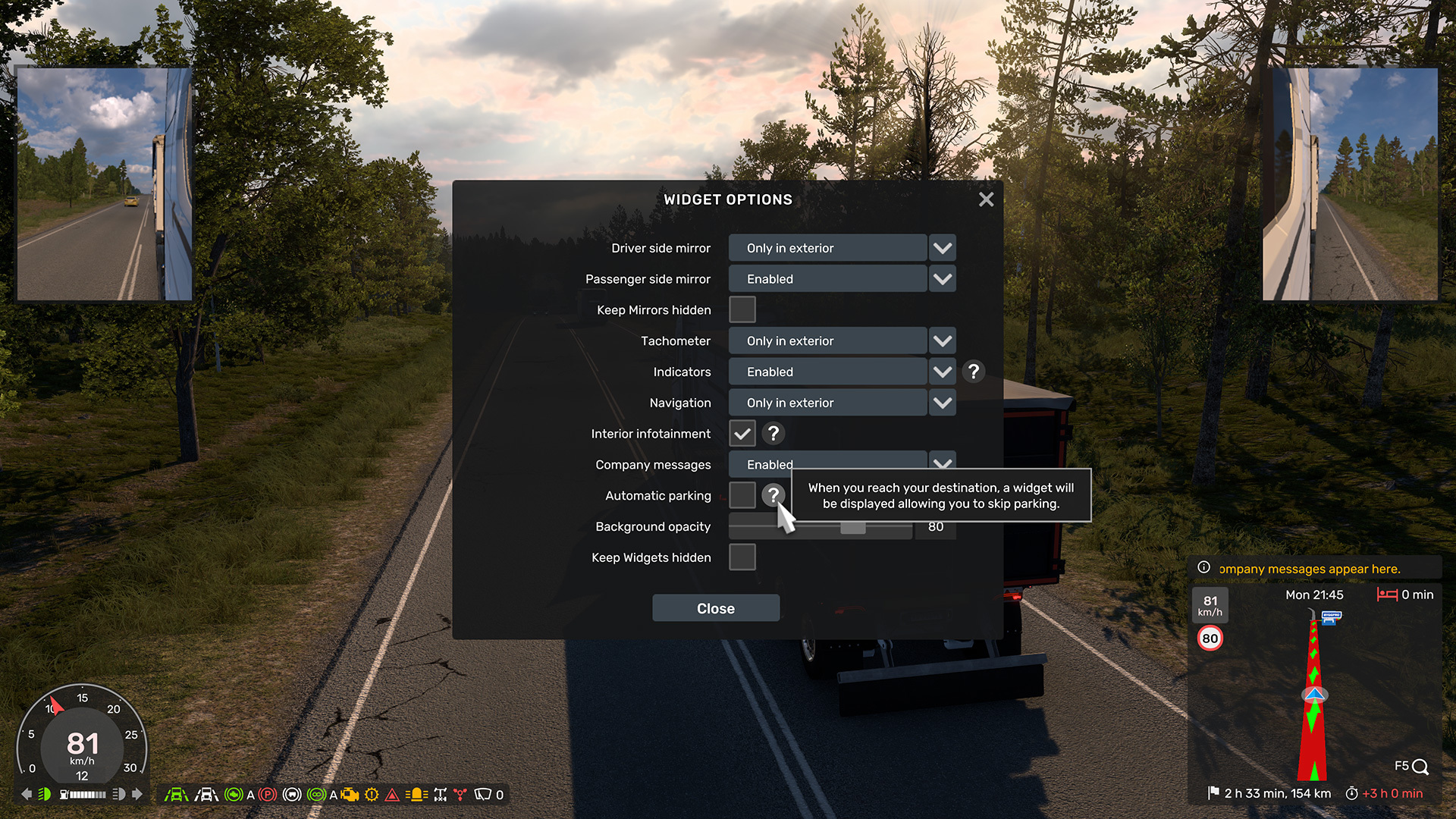
Each widget can be enabled or disabled independently, and you can choose whether it appears:
in the interior view
the exterior view
both
or not at all
If you want a minimal, immersive screen, great. If you want more at-a-glance feedback, also great. Furthermore, F3 remains as before to switch off all UI elements with notifications still being shown.
Driving-Critical Information, Front and CentreOne of our biggest focuses was improving feedback while driving, especially information that previously was missing, unclear, or only available in limited views.
What is now more visible and easier to read:
Speed
Selected gear
Fuel status
Time to rest
What is now displayed for the first time:
Engine RPM
Exact time until rest is required
Time remaining to complete a delivery
Truck systems indicators
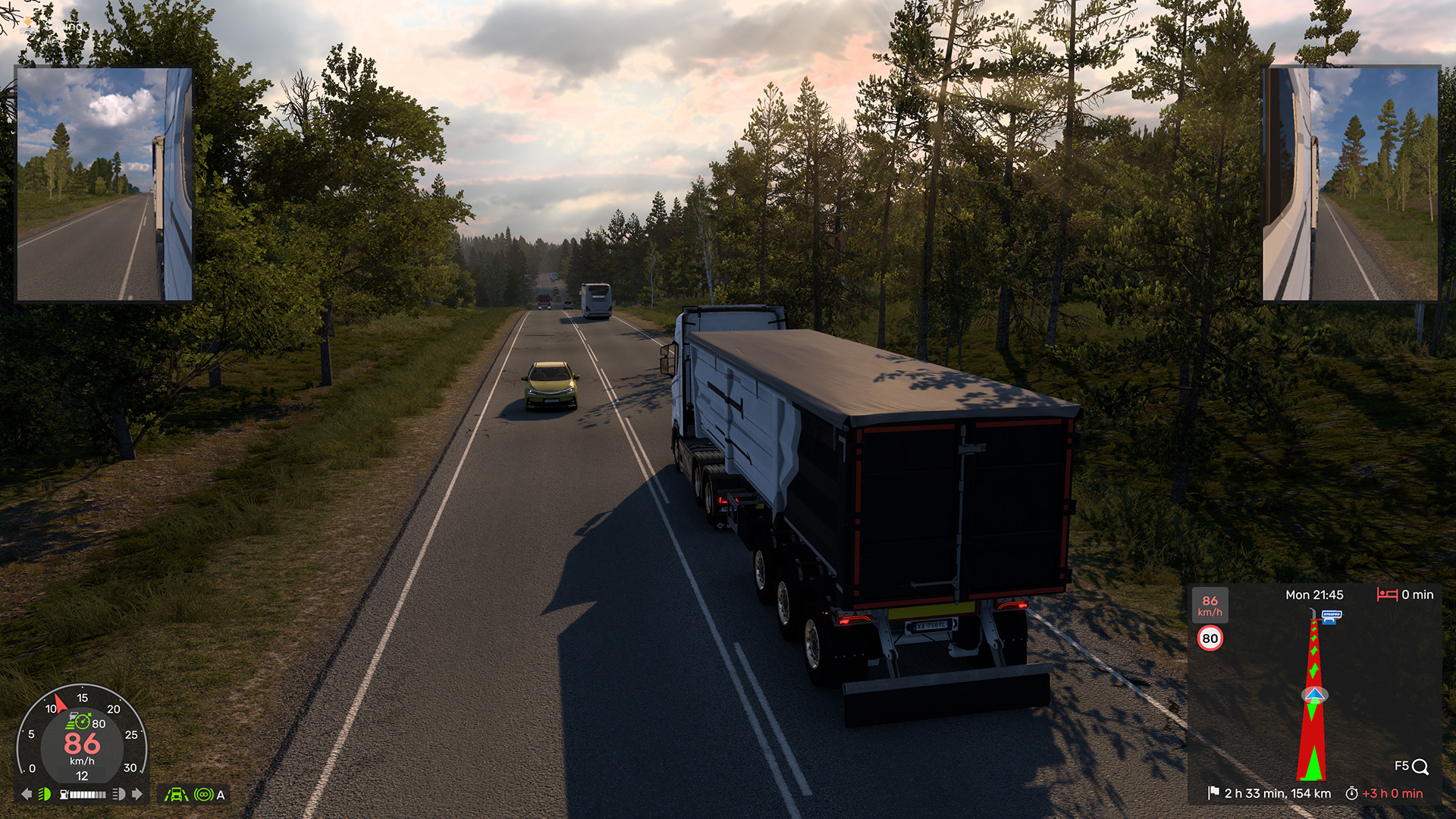
This information is available whether you’re driving from the cabin or using an exterior camera, so you’re never guessing what your truck is doing.
Clear Feedback on Truck Systems
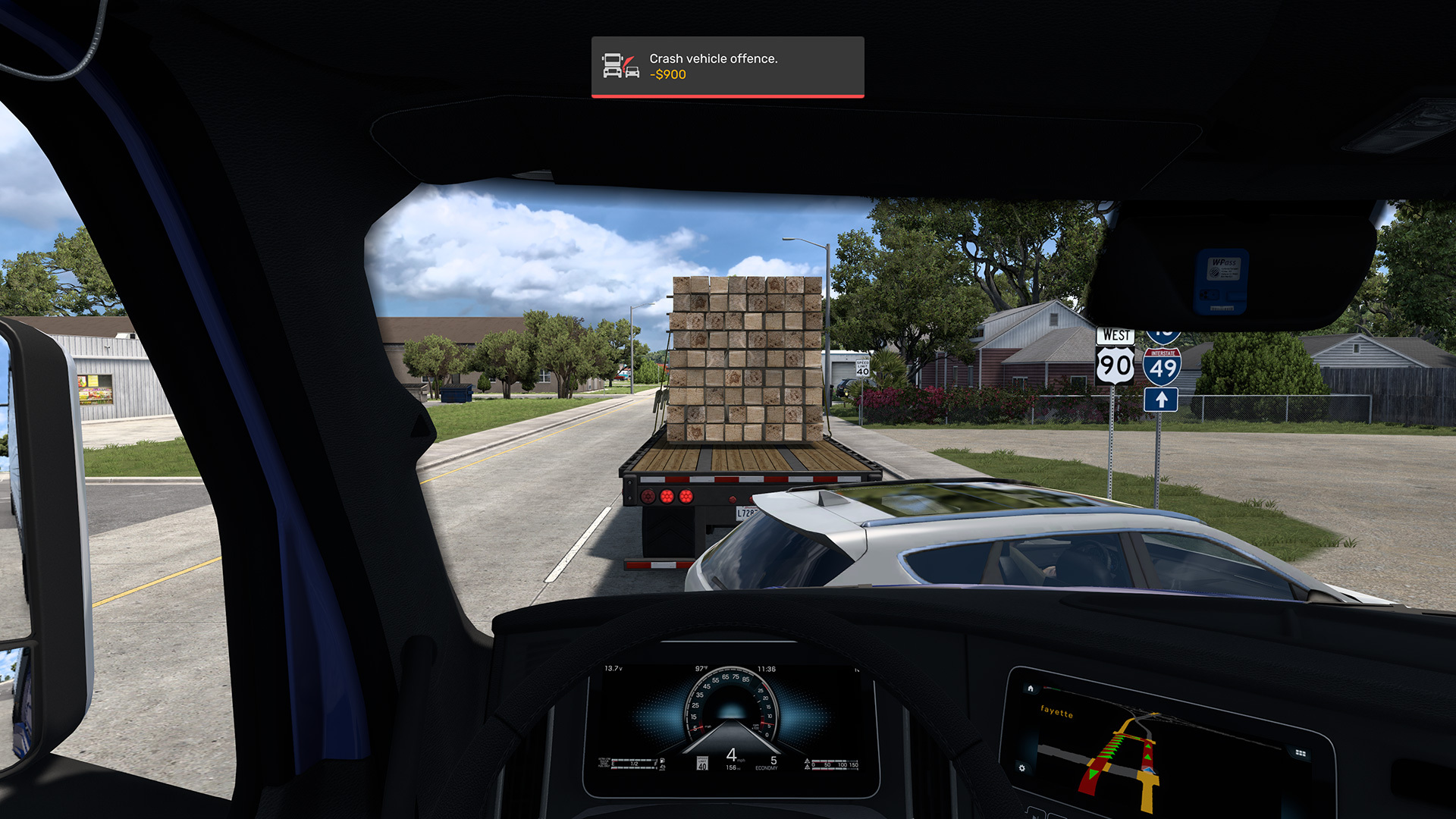
Modern trucks rely on many active systems, but until now, it wasn’t always obvious which ones were on, off, or partially engaged.
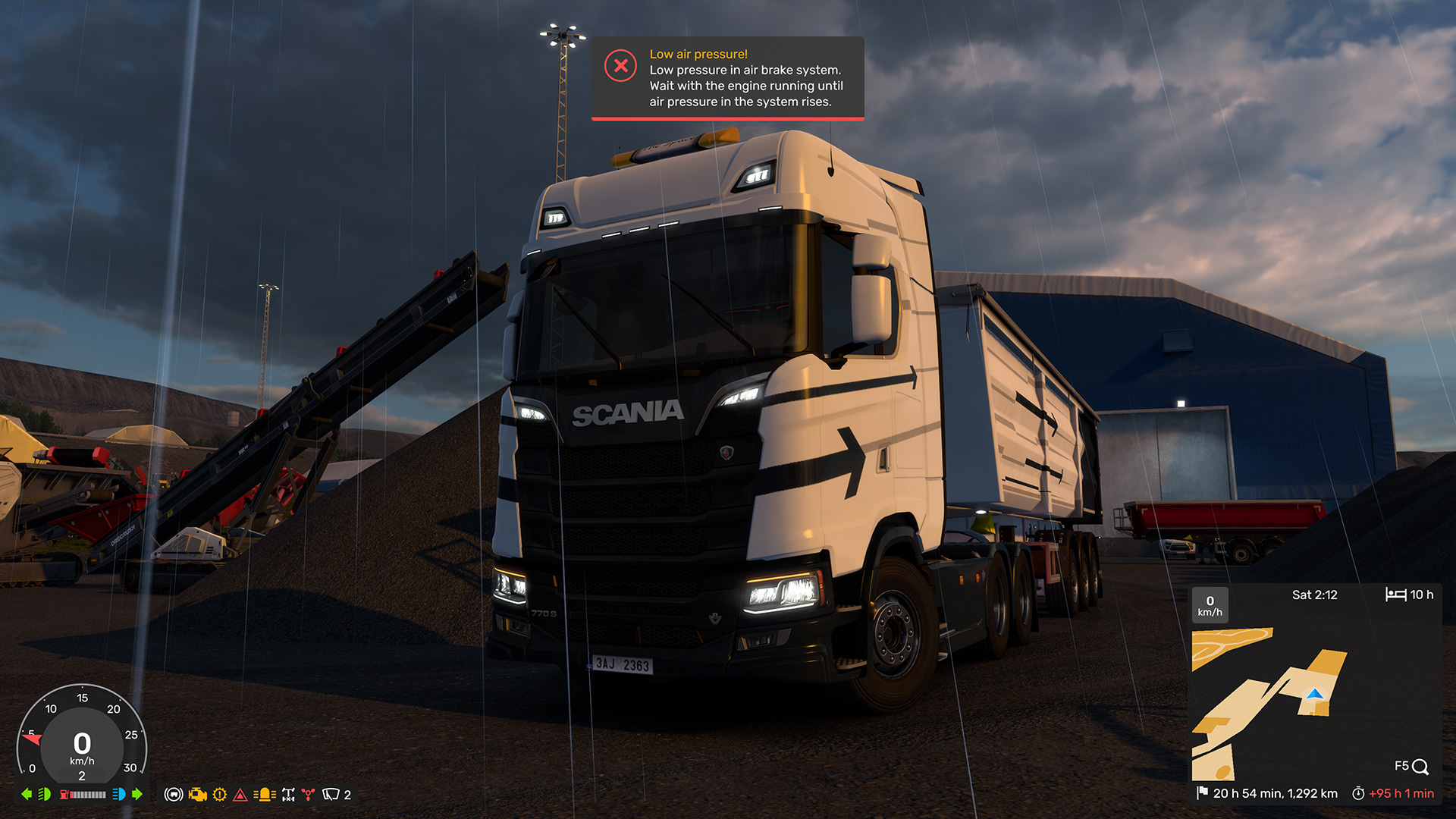
The new Indicators widget provides immediate visual feedback for systems such as:
Cruise control (including its settings)
Engine brake and retarder levels
Lane assist and lane departure warning
Lights, high beams, hazards, beacons
Parking brake, trailer brake, differential lock
Wipers and air brake pressure
Icons appear only when systems are active, keeping the screen clean while ensuring nothing important is hidden.
A Better Way to Understand Damage
Damage feedback has also been reworked.
Previously, damage was shown mainly as percentages, but those numbers didn’t always explain what that damage actually meant. Now, instead of an abstract value, the UI shows when a system is damaged enough to start malfunctioning.
In other words:
You don’t just know that something is damaged
You know when new damage occurs, with the change clearly highlighted
You know when it will start affecting how your truck behaves
This gives clearer feedback and a better sense of urgency, without unnecessary distraction.

Notifications That Inform Without OverwhelmingNotifications now live in a dedicated area of the screen and are colour-coded by importance:
Alerts
Warnings
Announcements
Only one notification appears at a time, helping you stay informed without flooding your view. This also prevents important messages from fighting for attention in multiple places.
Automatic Parking, Refined
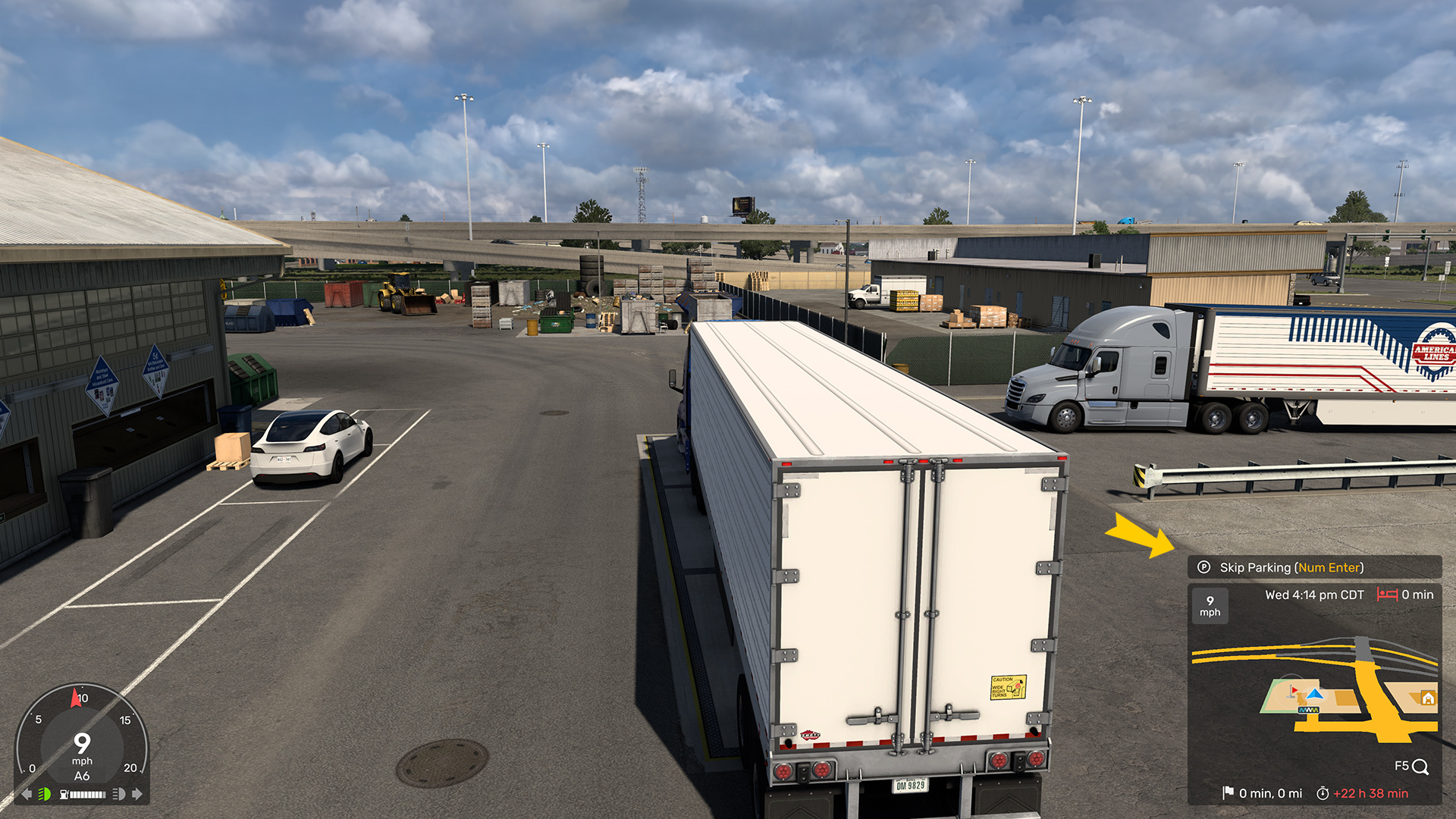
Automatic parking assistance has been redesigned to be less intrusive and more optional.
Instead of repeated reminders in a distracting block of text, it now appears as a small, dedicated widget (highlighted below) that subtly communicates the option clearly, and can be disabled entirely by experienced drivers who don’t need it.
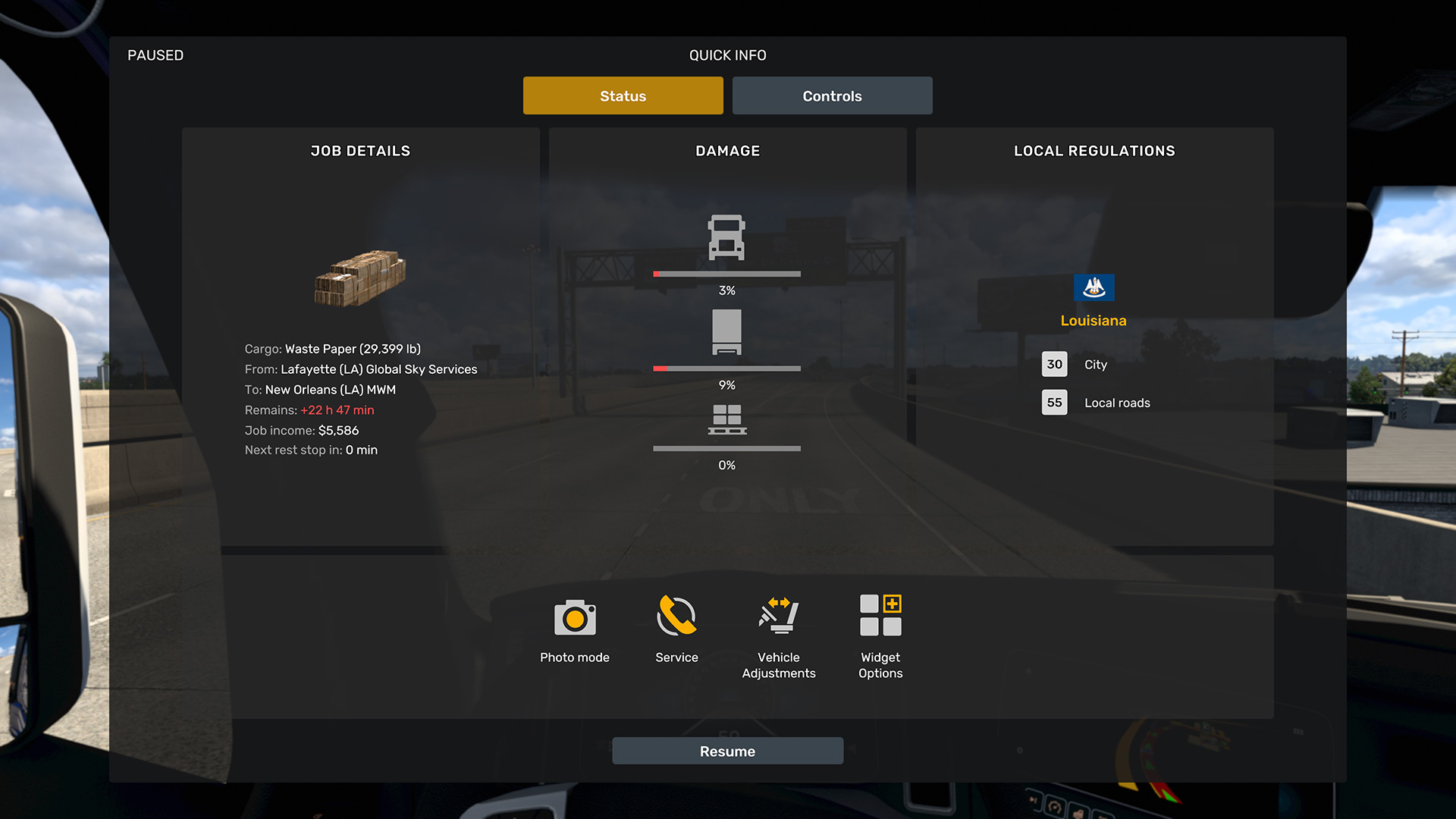
The Role of the Quick Info MenuSome information has been intentionally moved away from the live driving HUD to reduce distraction:
Detailed job information
Damage percentages
Vehicle adjustments and services
This information is now centralised in the Quick Info menu, alongside:
Control references
Easier access to settings
Photo mode
Widget Options
Local regulations
The intent here is separation:
Driving HUD → what you need while driving
Quick Info menu → deeper context and configuration
This Is a Foundation, Not a Final Step
We want to reassure everyone that the new Route Advisor will continue to be improved.
Additional widgets, refinements, and customisation options are all possible because of this new foundation, and we intend to get this right, for everyone.
Looking Ahead
Change is always hardest at first, especially when it touches something as familiar as the Route Advisor. We understand the community’s concerns, the strong reactions, and the passion behind them. That passion about our game is exactly why we care so deeply about getting this right. Our commitment is simple:
Preserve the heart of truck driving
Improve clarity, driving awareness, and immersion
And keep making this system better with you, not without you
Thank you for taking the time to read this and share your thoughts, and for continuing to travel on this incredible journey with us and the game we all love.
We’ll see you on the road.
What's Your Reaction?