



![[PRO Tips] Gold’s Bullish Revival: Seasonal Trends and Key Levels to Watch](https://xinker.org/uploads/images/202412/image_430x256_67724cc6ad0cd.webp)
![[PRO Tips] Gold Market Under Short-Term Pressure, Safe-Haven Demand and Central Bank Buying Support Long-Term Upside Potential](https://xinker.org/uploads/images/202412/image_430x256_676ffb4685287.webp)
![[PRO Tips] Analysis of 9 key points of differentiation strategy! Master differentiation to create a brand advantage that is unique in the world!](https://firebasestorage.googleapis.com/v0/b/xinker-tips.appspot.com/o/article_thumbnails%2Fscaled_differentiation%20strategy.png.png?alt=media&token=a1bfc3d2-e85a-4db7-8a6d-01c7274f8940)
![[PRO Tips] Will REITs regain growth momentum in 2024? 3 REITs ETFs you must know if you want to invest in real estate.](https://firebasestorage.googleapis.com/v0/b/xinker-tips.appspot.com/o/article_thumbnails%2Fscaled_REITs1.png.png?alt=media&token=8af4eb93-33ff-466f-8039-b6555fad52b4)
![[PRO Tips] Complete tutorial on how to make money in Adobe Stock!](https://firebasestorage.googleapis.com/v0/b/xinker-tips.appspot.com/o/article_thumbnails%2Fscaled_tut-adobe1.png.png?alt=media&token=0b2c8cf2-22bd-4142-883e-140ed1cbaf02)
![[Passive Income] Unlock the secret of passive income: 3 steps to apply for Google AdSense](https://xinker.org/uploads/images/202410/image_430x256_6717a4fb3052b.webp)
![[Passive Income] Earn over $200 a day with AI-generated articles!](https://firebasestorage.googleapis.com/v0/b/xinker-tips.appspot.com/o/article_thumbnails%2Fscaled_article1.png.png?alt=media&token=f61bf35b-8553-4719-826d-7360024adc70)
![[Passive Income] Earn over 20 USD per download with AI-generated images!](https://firebasestorage.googleapis.com/v0/b/xinker-tips.appspot.com/o/article_thumbnails%2Fscaled_adobe2.png.png?alt=media&token=3e20e76a-a907-45af-80aa-bf9b3600301f)
![[Passive Income] Earn 10 USD per new download by sharing CapCut!](https://firebasestorage.googleapis.com/v0/b/xinker-tips.appspot.com/o/article_thumbnails%2Fscaled_capcut2.png.png?alt=media&token=a04dec40-1fac-4857-86f2-19a8be02d38e)
![[Passive Income] Use your WiFi to create passive income in 5 minutes, and you can earn 4-6 U per day!](https://firebasestorage.googleapis.com/v0/b/xinker-tips.appspot.com/o/article_thumbnails%2Fscaled_Grassio.webp.png?alt=media&token=7659a95e-0e47-4f27-a17d-c942ac3cf7f4)


![[Business Talk] The Unique Theme of XINKER's Song: Beef Wellington and Business Mastery](https://xinker.org/uploads/images/202410/image_430x256_671afc155f47f.webp)
![[Business Talk] Chagee: Opening 3,500 stores in 6 years](https://xinker.org/uploads/images/202410/image_430x256_671afce80c5f9.webp)


[Digital Goods] Blessing in Bloom: Epindel
Guide your Star-kissed Saviors, StarSavior!Greetings, Captain! This is your Liaison Officer, GM Lisa. The custom mouse cursor for the May bride, Blessing in Bloom: Epindel, has been released.You can download it through the link below, so we hope you will show it lots of interest.◆ Blessing in Bloom: Epindel Custom Mouse Cursor ▷ \[Download]\[Installation Guide]1. Extract the downloaded file to your desktop.2. Right-click the install.inf file inside the folder, then click \[Install].- The installation will proceed automatically without a separate pop-up or notice.3. Press the Windows key + R on your keyboard, then enter “main.cpl”.4. Select the \[Pointers] tab, choose \[StarSavior_Carmen] from the scheme list, then click \[Apply].Q. The cursor is too small and hard to see.A. 1. Open Windows Settings, then click \[Bluetooth & devices]. 2. Click \[Mouse pointer], then adjust the \[Size] as desired.→ After adjusting the size, the mouse cursor will change back to the default Windows cursor, so you will need to change it again.Q. The mouse cursor is not installed even after installing it through the install file.A. After completing up to Step 4, you can also manually set the cursor using the .ani files extracted from the downloaded file. Click the \[Browse] button under \[Scheme], then manually assign each cursor to the appropriate role.Thank you.
![[Digital Goods] Blessing in Bloom: Epindel](https://clan.akamai.steamstatic.com/images/45693889/4a10341e7ed8c6a2bee8f8229524fcbb0a7634d2.png?#)

Guide your Star-kissed Saviors, StarSavior!
Greetings, Captain! This is your Liaison Officer, GM Lisa.
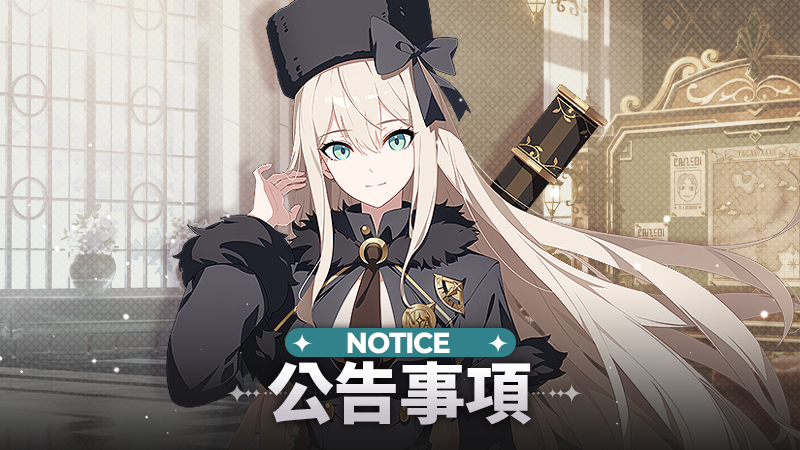
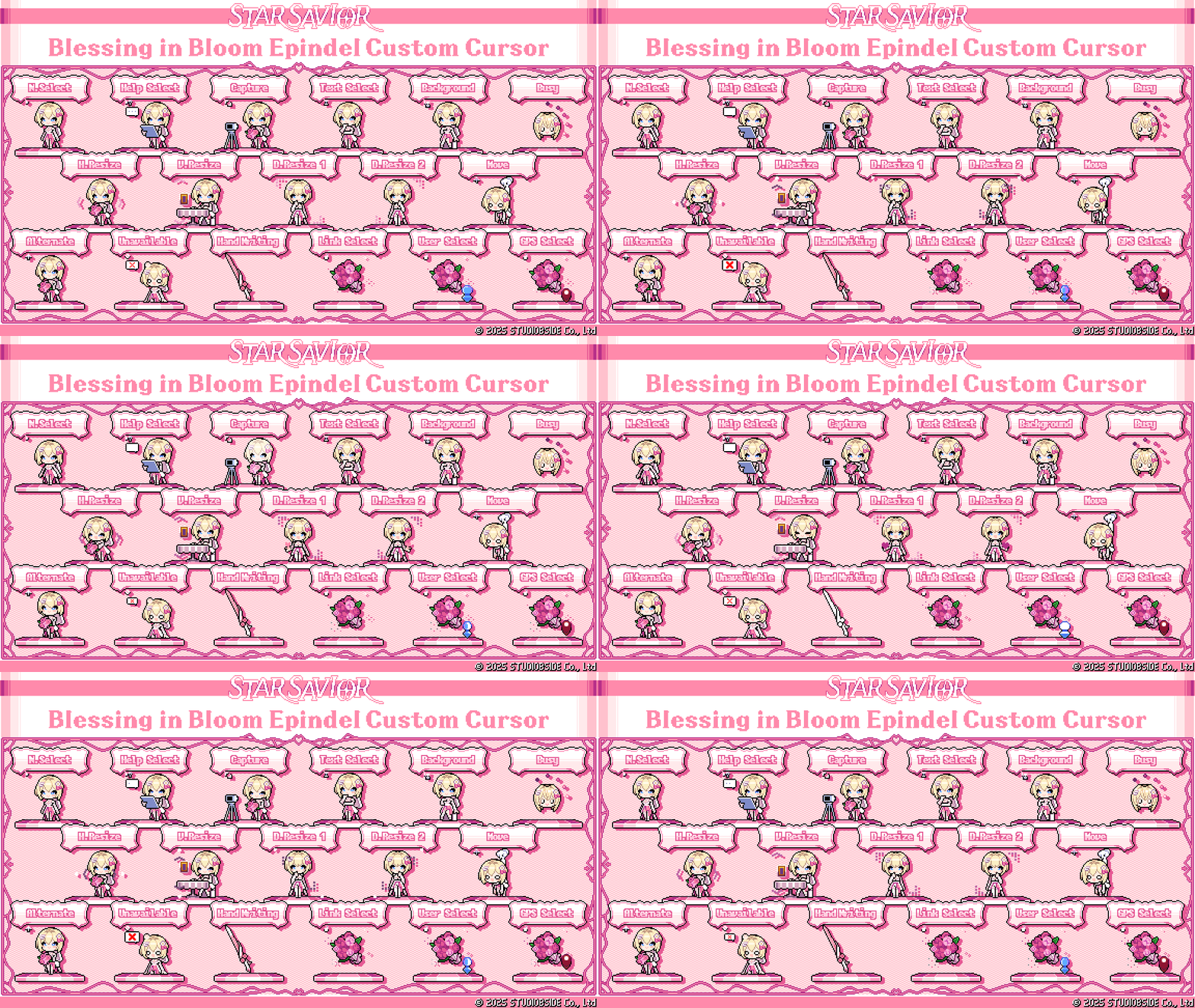
The custom mouse cursor for the May bride, Blessing in Bloom: Epindel, has been released.
You can download it through the link below, so we hope you will show it lots of interest.
◆ Blessing in Bloom: Epindel Custom Mouse Cursor
▷ \[Download]
\[Installation Guide]
1. Extract the downloaded file to your desktop.
2. Right-click the install.inf file inside the folder, then click \[Install].
- The installation will proceed automatically without a separate pop-up or notice.
3. Press the Windows key + R on your keyboard, then enter “main.cpl”.
4. Select the \[Pointers] tab, choose \[StarSavior_Carmen] from the scheme list, then click \[Apply].
Q. The cursor is too small and hard to see.
A. 1. Open Windows Settings, then click \[Bluetooth & devices].
2. Click \[Mouse pointer], then adjust the \[Size] as desired.
→ After adjusting the size, the mouse cursor will change back to the default Windows cursor, so you will need to change it again.
Q. The mouse cursor is not installed even after installing it through the install file.
A. After completing up to Step 4, you can also manually set the cursor using the .ani files extracted from the downloaded file.
Click the \[Browse] button under \[Scheme], then manually assign each cursor to the appropriate role.
Thank you.
What's Your Reaction?










![[Business Talk] Chagee: Opening 3,500 stores in 6 years](https://xinker.org/uploads/images/202410/image_140x98_671afce94bf91.webp)