

![[PRO Tips] Gold’s Bullish Revival: Seasonal Trends and Key Levels to Watch](https://xinker.org/uploads/images/202412/image_430x256_67724cc6ad0cd.webp)
![[PRO Tips] Gold Market Under Short-Term Pressure, Safe-Haven Demand and Central Bank Buying Support Long-Term Upside Potential](https://xinker.org/uploads/images/202412/image_430x256_676ffb4685287.webp)
![[PRO Tips] Analysis of 9 key points of differentiation strategy! Master differentiation to create a brand advantage that is unique in the world!](https://firebasestorage.googleapis.com/v0/b/xinker-tips.appspot.com/o/article_thumbnails%2Fscaled_differentiation%20strategy.png.png?alt=media&token=a1bfc3d2-e85a-4db7-8a6d-01c7274f8940)
![[PRO Tips] Will REITs regain growth momentum in 2024? 3 REITs ETFs you must know if you want to invest in real estate.](https://firebasestorage.googleapis.com/v0/b/xinker-tips.appspot.com/o/article_thumbnails%2Fscaled_REITs1.png.png?alt=media&token=8af4eb93-33ff-466f-8039-b6555fad52b4)
![[PRO Tips] Complete tutorial on how to make money in Adobe Stock!](https://firebasestorage.googleapis.com/v0/b/xinker-tips.appspot.com/o/article_thumbnails%2Fscaled_tut-adobe1.png.png?alt=media&token=0b2c8cf2-22bd-4142-883e-140ed1cbaf02)
![[Passive Income] Unlock the secret of passive income: 3 steps to apply for Google AdSense](https://xinker.org/uploads/images/202410/image_430x256_6717a4fb3052b.webp)
![[Passive Income] Earn over $200 a day with AI-generated articles!](https://firebasestorage.googleapis.com/v0/b/xinker-tips.appspot.com/o/article_thumbnails%2Fscaled_article1.png.png?alt=media&token=f61bf35b-8553-4719-826d-7360024adc70)
![[Passive Income] Earn over 20 USD per download with AI-generated images!](https://firebasestorage.googleapis.com/v0/b/xinker-tips.appspot.com/o/article_thumbnails%2Fscaled_adobe2.png.png?alt=media&token=3e20e76a-a907-45af-80aa-bf9b3600301f)
![[Passive Income] Earn 10 USD per new download by sharing CapCut!](https://firebasestorage.googleapis.com/v0/b/xinker-tips.appspot.com/o/article_thumbnails%2Fscaled_capcut2.png.png?alt=media&token=a04dec40-1fac-4857-86f2-19a8be02d38e)
![[Passive Income] Use your WiFi to create passive income in 5 minutes, and you can earn 4-6 U per day!](https://firebasestorage.googleapis.com/v0/b/xinker-tips.appspot.com/o/article_thumbnails%2Fscaled_Grassio.webp.png?alt=media&token=7659a95e-0e47-4f27-a17d-c942ac3cf7f4)


![[Business Talk] The Unique Theme of XINKER's Song: Beef Wellington and Business Mastery](https://xinker.org/uploads/images/202410/image_430x256_671afc155f47f.webp)
![[Business Talk] Chagee: Opening 3,500 stores in 6 years](https://xinker.org/uploads/images/202410/image_430x256_671afce80c5f9.webp)


August 17 Update
In response to player feedback, we’ve deployed a new update for Halo: Campaign Evolved that features new video settings for Chromatic Aberration and Film Grain, refined combat against Jackals, improved keyboard control binding, and many more quality-of-life fixes!Updates and ImprovementsToday’s comprehensive update includes commonly requested video settings, a fix for custom keyboard configurations, updated ally and enemy behavior, and more. You can read the full patch notes article at Halo Support.New Video SettingsChromatic Aberration & Film GrainChromatic Aberration and Film Grain are used throughout Halo: Campaign Evolved for a variety of visual effects and rendering systems.With the August 17th update, players will now have the option to turn Chromatic Aberration and Film Grain on or off individually to better suit their visual preferences. Our intent is to match what players were already doing on their PCs using their configuration settings and bring it into the game menus. This makes tuning preferences more convenient and ensures console players have the same options. In places where Chromatic Aberration is used to communicate different player states or special effects (such as standing in a gravity lift), some of that effect will still be visible.Chromatic AberrationA side-by-side comparison with Chromatic Aberration turned on (left image) and turned off (right image). Film GrainA side-by-side comparison with film grain turned on (left image) and turned off (right image). To toggle Chromatic Aberration or Film Grain on or off:Open the Settings menu using F1 Select VideoNavigate down to the Video Motion & Effects sectionHere you will find a checkbox-style toggle for each effect. Upscaling Options on PCWhile setting your Upscaling Quality to Native (100% render resolution) removes resolution upscaling, Halo: Campaign Evolved continues to use processing techniques for image reconstruction, anti-aliasing, and other graphical enhancements.The August 17th update adds a new "None" setting under Upscaling Technique that allows upscaling and anti-aliasing to be turned off completely. A side-by-side comparison of Upscaling Technique set to NVIDIA Deep Learning Super Sampling (DLSS) (left image) and None (right image). Click the image to view it at full resolution. To turn off Upscaling:Open the Settings menu using F1Select VideoNavigate down to the Advanced sectionSelect Upscaling TechniqueSelect None in the dropdown menuIn-Game Account Unlinking HelpThe August 17th update introduces a new in-game method to start an account unlink request. Selecting this option opens your browser and prompts you to confirm your account details, then sign in to your Microsoft account. An in-game capture of the new Unlinking Help option in the account settings menu on Steam. Click the image to view it at full resolution.Follow these steps to find the new Unlinking Help option:Open the Settings menu using F1 Select AccountHighlight Unlinking Help to view your currently linked accounts on the right side of the screen, and press the Enter key (Keyboard) to begin the request process.For more information and assistance with account unlinking, visit Account Linking & Unlinking in Halo: Campaign Evolved. Resolved IssuesThe following list contains issues that have been fixed or improved since the previous release. Many improvements come from Halo Support tickets submitted by our community. Thank you for participating and please keep submitting tickets! GlobalJackals can now be staggered more reliably when targeting their hands and feet. Implemented several fixes for Sgt. Johnson in Boarding Action to address issues that could block mission progression. The Assault Rifle’s rate of fire and spread have been corrected to match the weapon's intended performance.In Halo, weapon accuracy is defined as "barrel error": the maximum angle by which a projectile can diverge from the barrel. Error is visualized in the weapon reticle, with elements of the reticle expanding to illustrate the error bounds (sometimes referred to as "weapon bloom"). Weapon barrels typically start with a very narrow error cone and that cone typically expands for a brief period after the barrel fires. That cone will then contract to the initial angle after the barrel has been idle for a brief period. This simulates the behavior of real-world weapon barrels and encourages the player to fire controlled bursts to maintain optimal accuracy.Players on some platforms noticed that the error cone on the Assault Rifle had a chance to fully contract between fired rounds while holding the trigger down, thus allowing the weapon to be fired continuously without sacrificing accuracy as long as vertical recoil was controlled. This was originally speculated to be an issue with the rate the error cone expanded and contracted on the weapon. After some investigation, it was identified that the rate-of-fire of the Assault Rifle was actually incorrect on these platforms. The error value
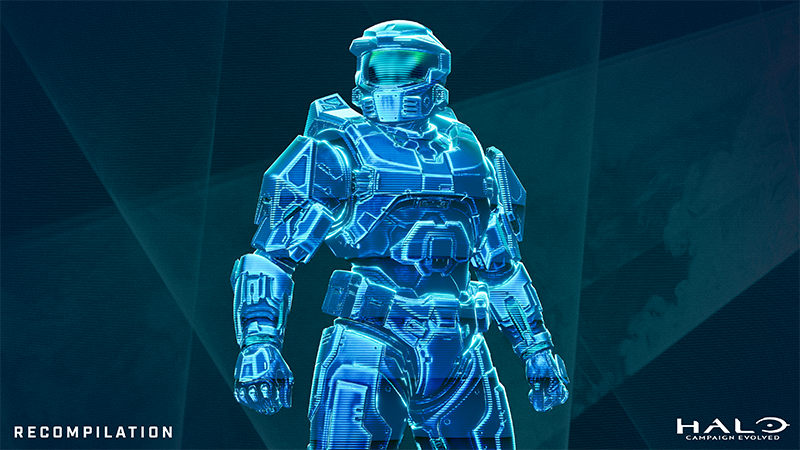
In response to player feedback, we’ve deployed a new update for Halo: Campaign Evolved that features new video settings for Chromatic Aberration and Film Grain, refined combat against Jackals, improved keyboard control binding, and many more quality-of-life fixes!
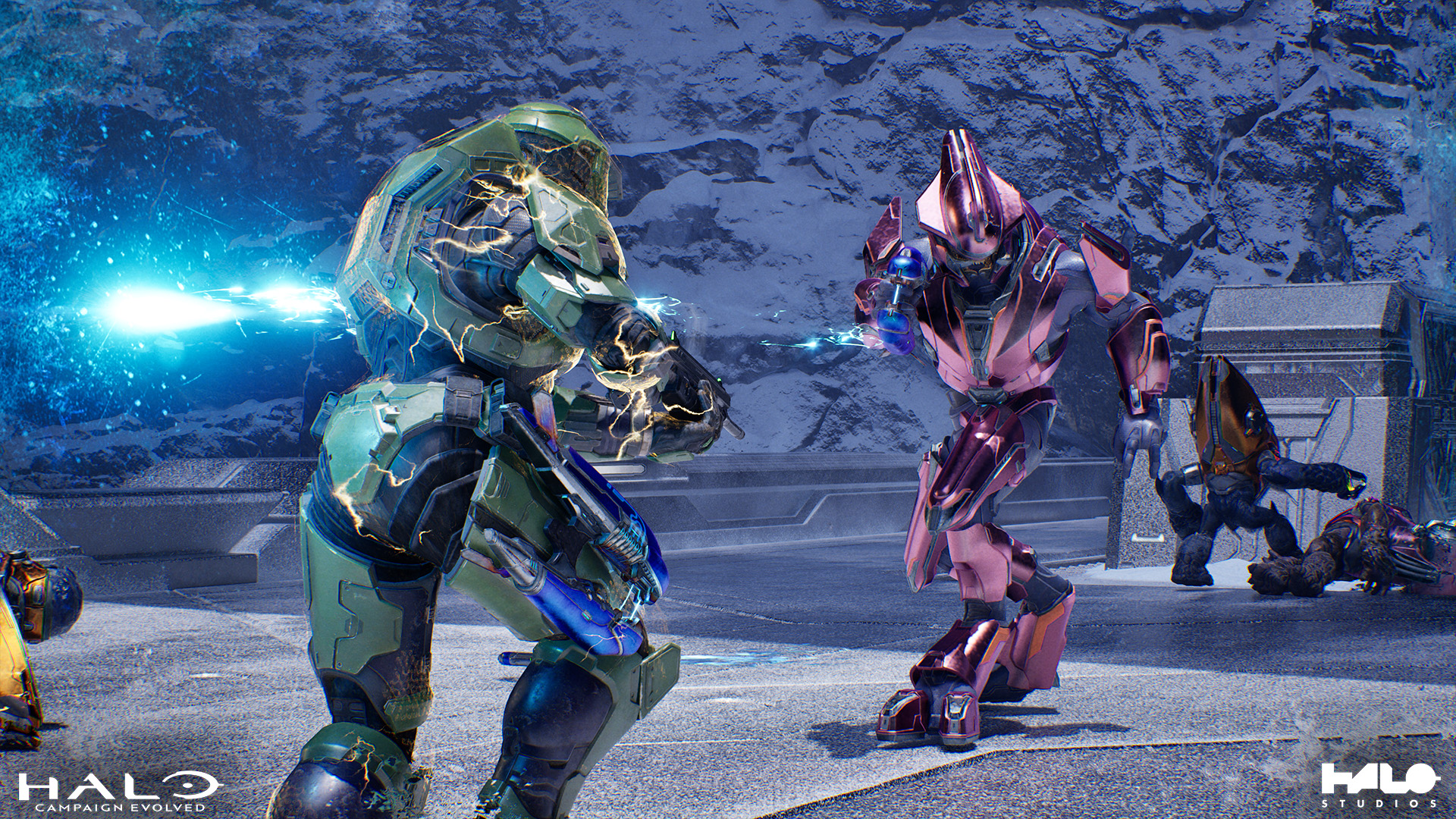
Today’s comprehensive update includes commonly requested video settings, a fix for custom keyboard configurations, updated ally and enemy behavior, and more. You can read the full patch notes article at Halo Support.
Chromatic Aberration and Film Grain are used throughout Halo: Campaign Evolved for a variety of visual effects and rendering systems.
With the August 17th update, players will now have the option to turn Chromatic Aberration and Film Grain on or off individually to better suit their visual preferences.
Our intent is to match what players were already doing on their PCs using their configuration settings and bring it into the game menus. This makes tuning preferences more convenient and ensures console players have the same options. In places where Chromatic Aberration is used to communicate different player states or special effects (such as standing in a gravity lift), some of that effect will still be visible.
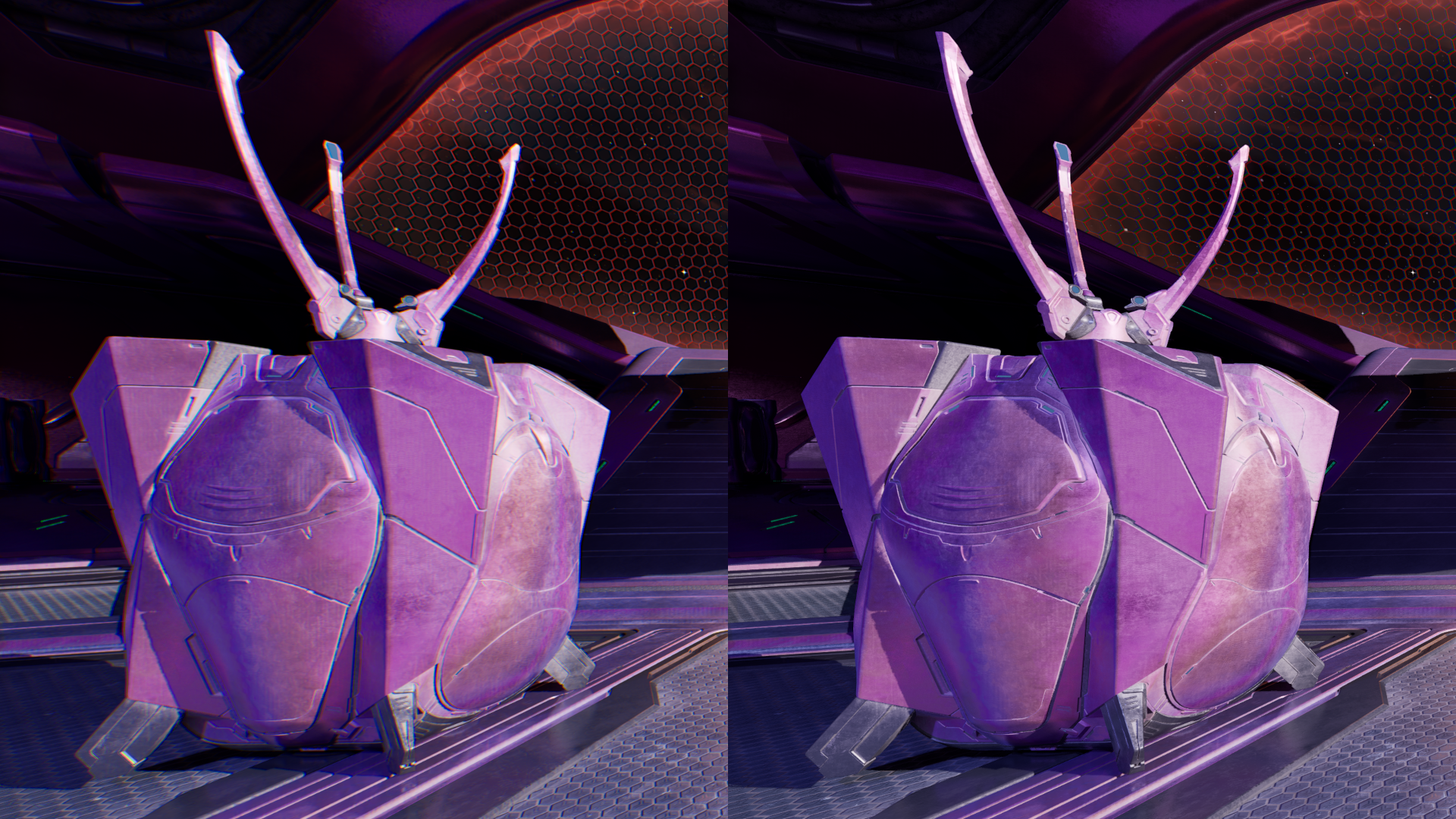 A side-by-side comparison with Chromatic Aberration turned on (left image) and turned off (right image).
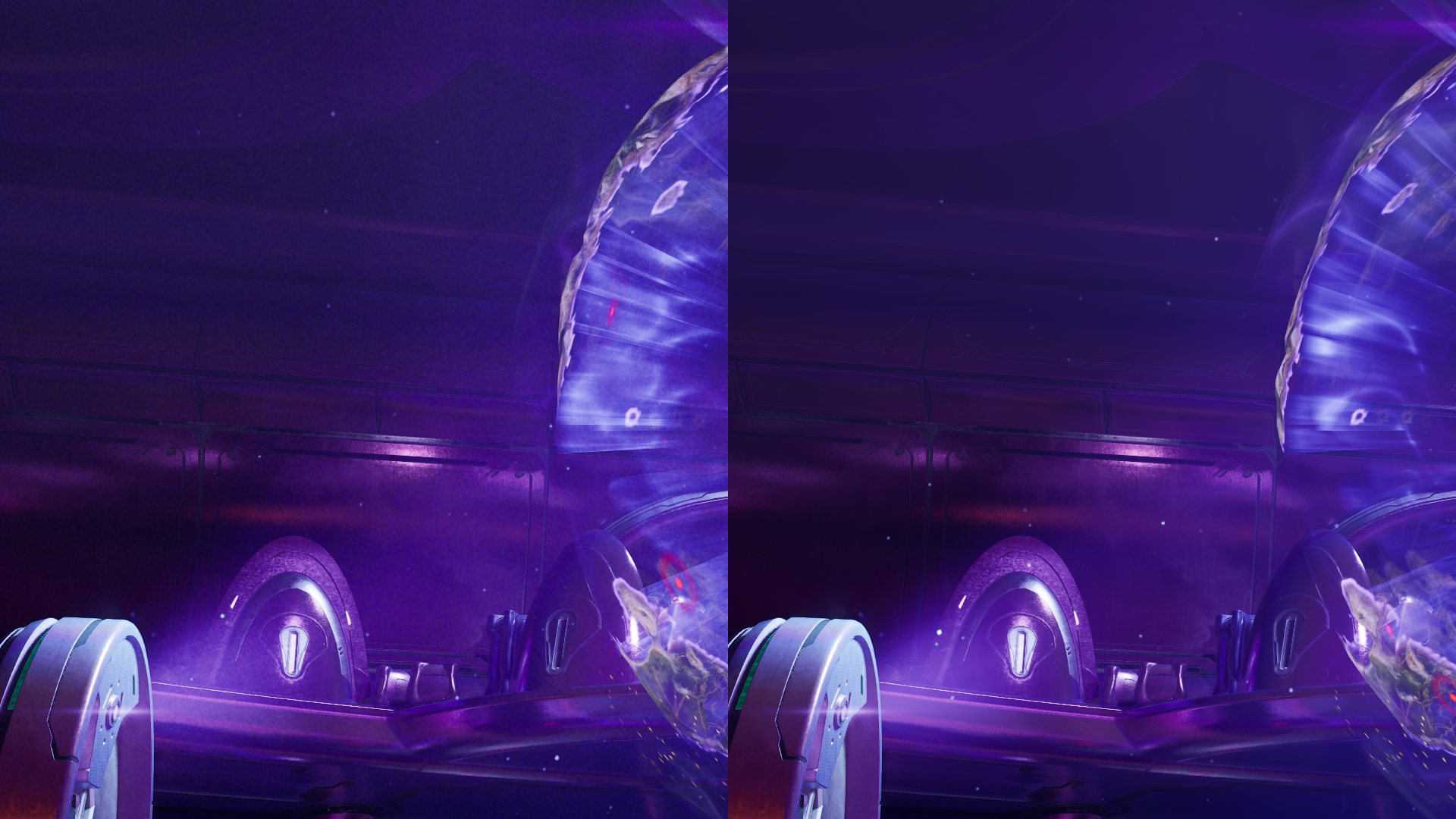 A side-by-side comparison with film grain turned on (left image) and turned off (right image).
To toggle Chromatic Aberration or Film Grain on or off:
Open the Settings menu using F1
Select Video
Navigate down to the Video Motion & Effects section
Here you will find a checkbox-style toggle for each effect.
While setting your Upscaling Quality to Native (100% render resolution) removes resolution upscaling, Halo: Campaign Evolved continues to use processing techniques for image reconstruction, anti-aliasing, and other graphical enhancements.
The August 17th update adds a new "None" setting under Upscaling Technique that allows upscaling and anti-aliasing to be turned off completely.
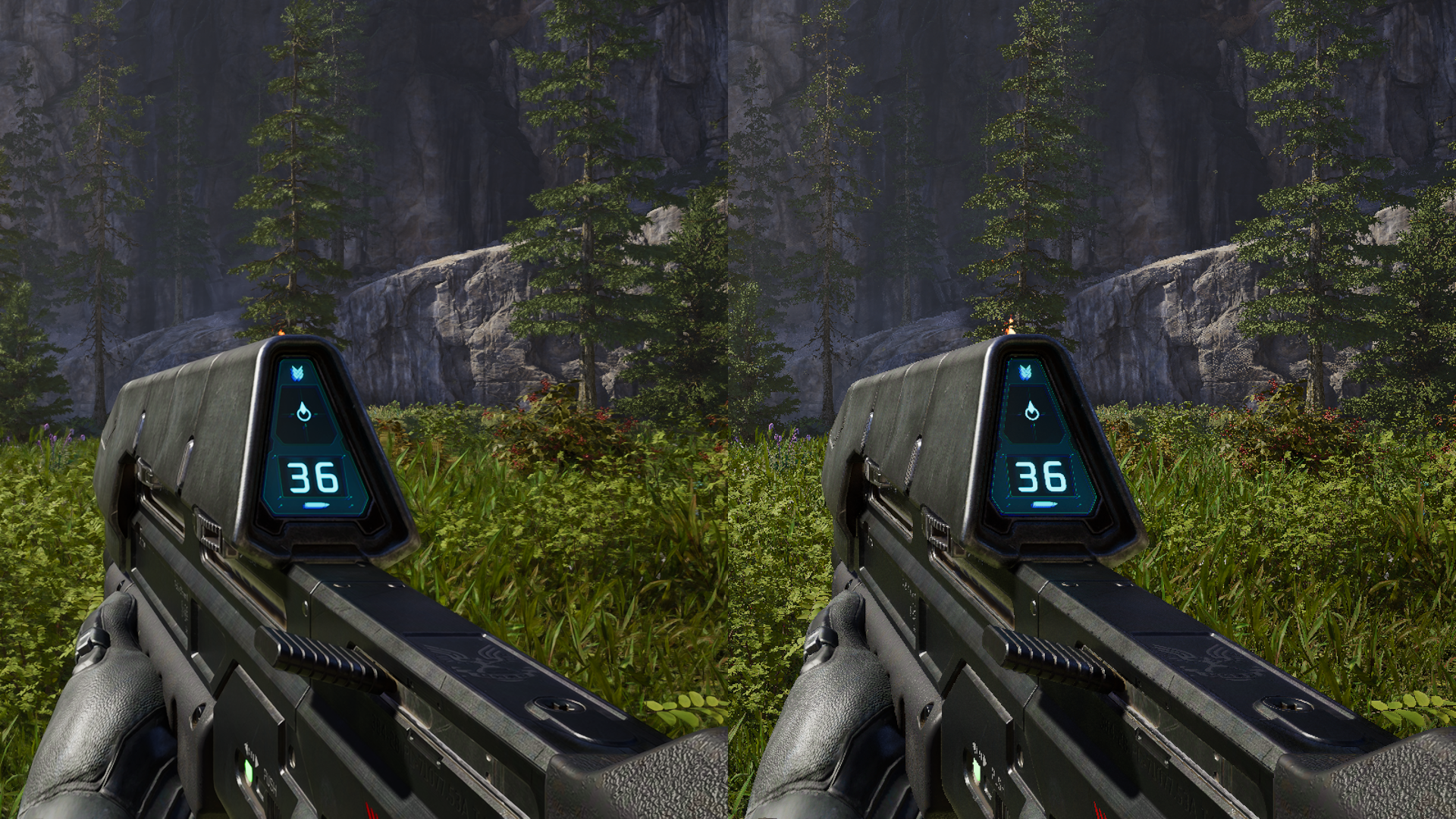 A side-by-side comparison of Upscaling Technique set to NVIDIA Deep Learning Super Sampling (DLSS) (left image) and None (right image). Click the image to view it at full resolution.
To turn off Upscaling:
Open the Settings menu using F1
Select Video
Navigate down to the Advanced section
Select Upscaling Technique
Select None in the dropdown menu
The August 17th update introduces a new in-game method to start an account unlink request. Selecting this option opens your browser and prompts you to confirm your account details, then sign in to your Microsoft account.
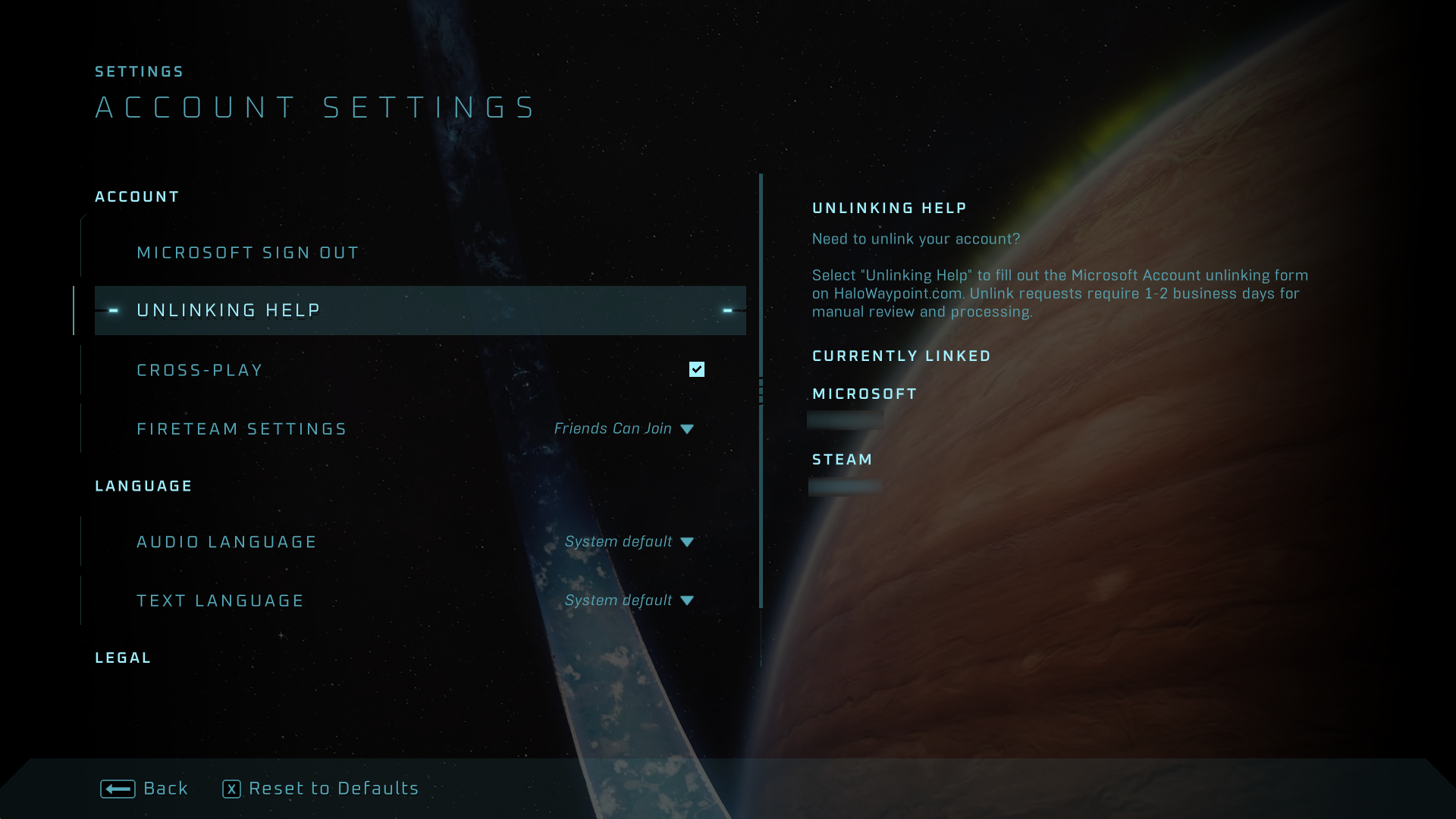 An in-game capture of the new Unlinking Help option in the account settings menu on Steam. Click the image to view it at full resolution.
Follow these steps to find the new Unlinking Help option:
Open the Settings menu using F1
Select Account
Highlight Unlinking Help to view your currently linked accounts on the right side of the screen, and press the Enter key (Keyboard) to begin the request process.
For more information and assistance with account unlinking, visit Account Linking & Unlinking in Halo: Campaign Evolved.
The following list contains issues that have been fixed or improved since the previous release. Many improvements come from Halo Support tickets submitted by our community. Thank you for participating and please keep submitting tickets!
Jackals can now be staggered more reliably when targeting their hands and feet.
Implemented several fixes for Sgt. Johnson in Boarding Action to address issues that could block mission progression.
The Assault Rifle’s rate of fire and spread have been corrected to match the weapon's intended performance.
In Halo, weapon accuracy is defined as "barrel error": the maximum angle by which a projectile can diverge from the barrel. Error is visualized in the weapon reticle, with elements of the reticle expanding to illustrate the error bounds (sometimes referred to as "weapon bloom"). Weapon barrels typically start with a very narrow error cone and that cone typically expands for a brief period after the barrel fires. That cone will then contract to the initial angle after the barrel has been idle for a brief period. This simulates the behavior of real-world weapon barrels and encourages the player to fire controlled bursts to maintain optimal accuracy.
Players on some platforms noticed that the error cone on the Assault Rifle had a chance to fully contract between fired rounds while holding the trigger down, thus allowing the weapon to be fired continuously without sacrificing accuracy as long as vertical recoil was controlled. This was originally speculated to be an issue with the rate the error cone expanded and contracted on the weapon. After some investigation, it was identified that the rate-of-fire of the Assault Rifle was actually incorrect on these platforms. The error values were tuned around the intended rate-of-fire of 10 rounds-per-second, but the weapon was firing more slowly which gave the barrel the chance to recover after each round. While this made the accuracy of the weapon easier to manage, it also lowered its damage output. This also led to the weapon fire audio being out of phase with the actual weapon fire.
Halo's game simulation updates at fixed intervals known as game ticks. The simulation runs at a tick rate of 60 ticks-per-second or 60 Hz. During each tick, every game system and object in the game world has a chance to update. As such, the rate of fire for a weapon barrel is converted from a rounds-per-second value defined by a designer to a ticks-per-round value. The Assault Rifle's rate of fire of 10 rounds-per-second is therefore 6 ticks-per-round. However, it was actually firing every 7 ticks (for a rate of fire of 8.57 rounds-per-second).
The ticks-per-round value is stored as a single-precision floating point value. Floating points are used over integer values because the ticks-per-round value may be less than one and special logic is in place to amortize any rate-of-fire that doesn't evaluate to a whole number ticks-per-round value similarly to how the Earth's revolution around the sun (which takes 365.25...ish days) results in a "leap year" on every fourth year. Due to floating point imprecision, the barrel's ticks-per-round computation was returning 6.0000048. The barrel's idle timer (the number of ticks since it last fired) is compared to the ticks-per-round value to determine whether the barrel can fire again on the current tick. When the barrel updated on the 6th tick after firing, the expression 6>=6.0000048 evaluated to false and the barrel determined it was not allowed to fire again. On the subsequent tick, the expression 7>=6.0000048 evaluated to true and the barrel was able to fire.
While the ticks-per-round computation in Halo Campaign Evolved has intentionally not meaningfully changed from previous Halo games, compiler optimizations exposed this latent bug. These optimizations didn't affect all platforms in the same way which is why the rate-of-fire differed across platforms. We've fixed the underlying bug to restore the rate-of-fire of the Assault Rifle to its intended value. This increases the damage output of the weapon, while requiring players to fire short, controlled bursts to maintain optimal accuracy. The bug affected other weapons in subtle ways and has been fixed across the board.
Fixed an issue where Marines and Flood Marines would not fire their Assault Rifles when the Magnified Skull was enabled.
Marines equipped with a Battle Rifle will now fire their weapon as intended.
Improved Active Camo behavior to reduce instances of uncloaking when falling from a ledge or walking over small bumps.
Fixed an issue where console players using mouse and keyboard could experience inconsistent weapon firing.
Attempting to reload the Magnum immediately after firing will now correctly start the reload process.
Players can now interrupt the reload animation of the Fuel Rod Cannon, Rocket Launcher, or Needle Rifle by throwing grenades.
Achievement progress will no longer be awarded incorrectly when using restricted Skulls or difficulty modifiers.
Fixed an issue where achievements earned while playing offline were not awarded after reconnecting to the XBOX network, requiring players to repeat the unlock requirements.
Reduced instances where audio would become muddy, crackly, and pop during the mission Keyes.
Campaign Remix will no longer crash when Flood replace a group of enemies intended to enter vehicles.
Improved the account linking process where failing to make a Microsoft account would require a full title restart to attempt linking again.
Numerous improvements to PC stability and performance have been made, including:
Mouse & keyboard custom key bindings will no longer reset to default after restarting the game.
Adjusted Maximum Frame Rate options when using VSync on high refresh rate displays to prevent stability issues.
Improved stability when using XeSS Frame Generation and an in-game maximum frame rate limit.
Reduced occurrences of stability issues when loading a co-op session.
Added support for all graphics quality options across all supported devices.
Players can now select any graphics quality option, from Very Low to Ultra, regardless of their device type or hardware class.
All supported AMD graphics cards now properly utilize Advanced Shader Delivery, significantly reducing shader loading times and minimizing in-game hitching.
Frame rate during cinematic playback has been improved while using Frame Generation.
For improved performance, Frame Generation will automatically turn off during cinematics and then turn back on when gameplay resumes.
And we’re just getting started! Check out the latest Halo Support patch notes for more details on everything that comes with today’s update.
To thank our community for providing such excellent feedback since launch, we’re proud to unveil a new free Armor Style unlock for all Halo: Campaign Evolved players!
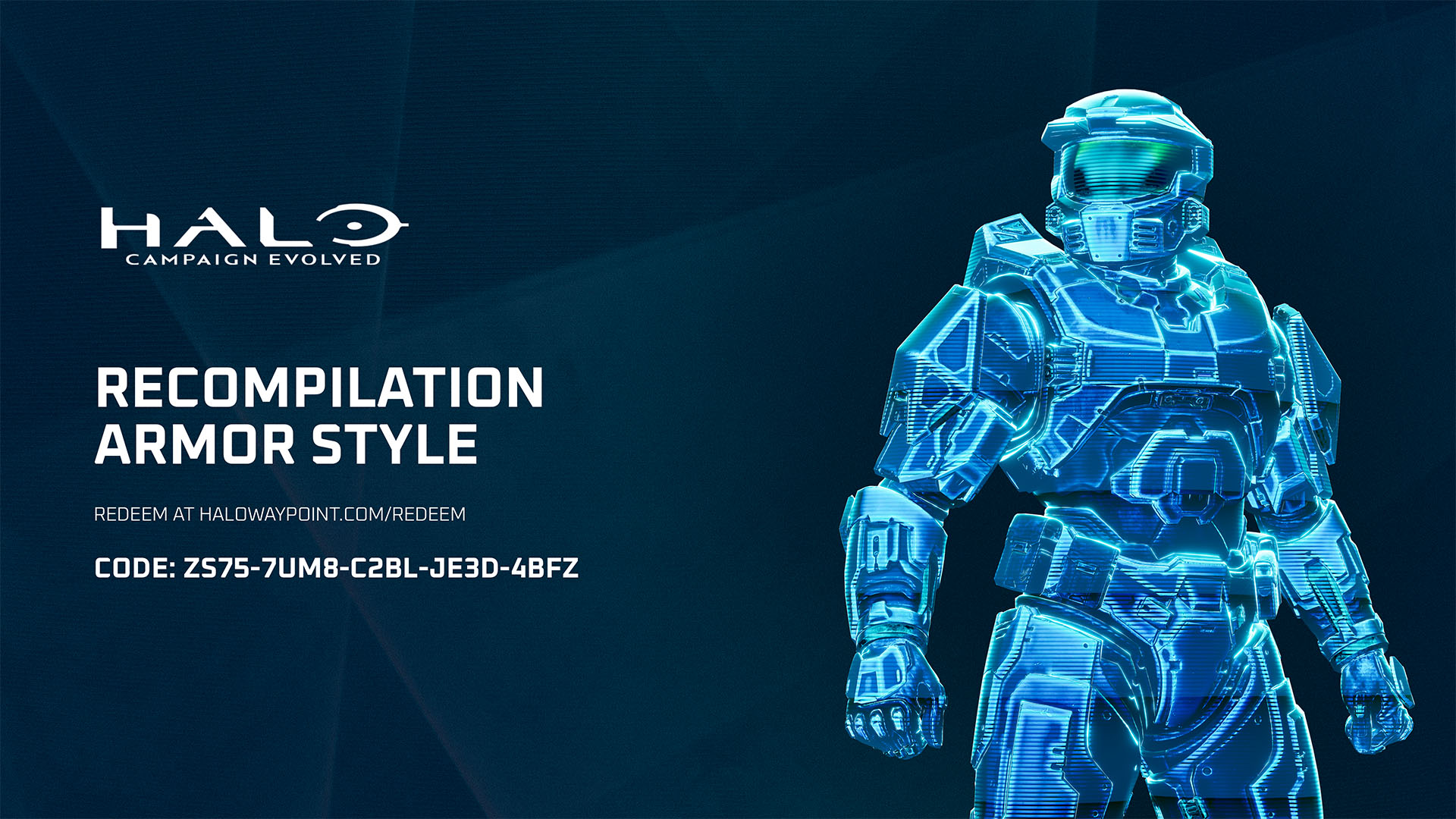
Explore the unknowable with the Recompilation Armor Style, the perfect avatar for heroes returning from the age of analog. Click the above link to redeem this all-new Armor Style, and then log into Halo: Campaign Evolved to equip it in the Customization menu.
If you haven’t already unlocked the free Sandstone Ancient and Damascus Prototype Armor Styles revealed at launch, click the links in this paragraph to redeem their codes on Halo Waypoint and add these elevated outfits to your campaign couture.
Update and play now to equip the Recompilation, Sandstone Ancient, or Damascus Prototype Armor Styles on your next outing!

Whether you dropped in during Early Access or just started campaigning, we’re so grateful to everyone who has joined the fight for humanity in Halo: Campaign Evolved. The Halo community’s thoughtful feedback and enthusiasm have always proven invaluable, and we’re humbled by your continued support.
Purchase the Digital Premium Edition of Halo: Campaign Evolved to unlock the Alpha Halo Armory Pack and exclusive digital essentials from the Halo universe.
What's Your Reaction?











![[Business Talk] Chagee: Opening 3,500 stores in 6 years](https://xinker.org/uploads/images/202410/image_140x98_671afce94bf91.webp)