

![[PRO Tips] Gold’s Bullish Revival: Seasonal Trends and Key Levels to Watch](https://xinker.org/uploads/images/202412/image_430x256_67724cc6ad0cd.webp)
![[PRO Tips] Gold Market Under Short-Term Pressure, Safe-Haven Demand and Central Bank Buying Support Long-Term Upside Potential](https://xinker.org/uploads/images/202412/image_430x256_676ffb4685287.webp)
![[PRO Tips] Analysis of 9 key points of differentiation strategy! Master differentiation to create a brand advantage that is unique in the world!](https://firebasestorage.googleapis.com/v0/b/xinker-tips.appspot.com/o/article_thumbnails%2Fscaled_differentiation%20strategy.png.png?alt=media&token=a1bfc3d2-e85a-4db7-8a6d-01c7274f8940)
![[PRO Tips] Will REITs regain growth momentum in 2024? 3 REITs ETFs you must know if you want to invest in real estate.](https://firebasestorage.googleapis.com/v0/b/xinker-tips.appspot.com/o/article_thumbnails%2Fscaled_REITs1.png.png?alt=media&token=8af4eb93-33ff-466f-8039-b6555fad52b4)
![[PRO Tips] Complete tutorial on how to make money in Adobe Stock!](https://firebasestorage.googleapis.com/v0/b/xinker-tips.appspot.com/o/article_thumbnails%2Fscaled_tut-adobe1.png.png?alt=media&token=0b2c8cf2-22bd-4142-883e-140ed1cbaf02)
![[Passive Income] Unlock the secret of passive income: 3 steps to apply for Google AdSense](https://xinker.org/uploads/images/202410/image_430x256_6717a4fb3052b.webp)
![[Passive Income] Earn over $200 a day with AI-generated articles!](https://firebasestorage.googleapis.com/v0/b/xinker-tips.appspot.com/o/article_thumbnails%2Fscaled_article1.png.png?alt=media&token=f61bf35b-8553-4719-826d-7360024adc70)
![[Passive Income] Earn over 20 USD per download with AI-generated images!](https://firebasestorage.googleapis.com/v0/b/xinker-tips.appspot.com/o/article_thumbnails%2Fscaled_adobe2.png.png?alt=media&token=3e20e76a-a907-45af-80aa-bf9b3600301f)
![[Passive Income] Earn 10 USD per new download by sharing CapCut!](https://firebasestorage.googleapis.com/v0/b/xinker-tips.appspot.com/o/article_thumbnails%2Fscaled_capcut2.png.png?alt=media&token=a04dec40-1fac-4857-86f2-19a8be02d38e)
![[Passive Income] Use your WiFi to create passive income in 5 minutes, and you can earn 4-6 U per day!](https://firebasestorage.googleapis.com/v0/b/xinker-tips.appspot.com/o/article_thumbnails%2Fscaled_Grassio.webp.png?alt=media&token=7659a95e-0e47-4f27-a17d-c942ac3cf7f4)


![[Business Talk] The Unique Theme of XINKER's Song: Beef Wellington and Business Mastery](https://xinker.org/uploads/images/202410/image_430x256_671afc155f47f.webp)
![[Business Talk] Chagee: Opening 3,500 stores in 6 years](https://xinker.org/uploads/images/202410/image_430x256_671afce80c5f9.webp)


Best Pragmata graphics settings for no lag and max FPS
Pragmata is Capcom's newest IP, the one that is finally breaking the chain of incessant sequels, spin-offs, and remake releases that the company had been indulging in for nearly the past decade. As a level-based game, Pragmata runs exceptionally well on most hardware, even when all the bells and whistles are turned on, seeing as there isn't all too much to render at any given time. It plays into all the optimization strengths of the RE Engine, which thrives precisely in closed-off, linear, and limited environments. However, we can always squeeze out extra FPS, so here are our recommended settings.Recommended Pragmata settings for optimal performance Image via Capcom Pragmata runs on the same engine as Resident Evil: Requiem. If you had luck in that game using those exact settings, replicating them in Pragmata could be useful for you. If, on the other hand, you didn't try that game or are seeing significantly different results in Pragmata, here are the settings I would go with. Frame Rate: Variable Ray Tracing: Off (unless on a 4070 or higher GPU) Image Quality: 100 percentDynamic Resolution: OffHair Quality: Medium (or High if you have a more capable CPU)Texture Quality: High - 2GB (for GPUs with 8GB or less VRAM) Texture Filtering: High Mesh Quality: Medium/HighShadow Quality: Medium Shadow Cache: OnContact Shadows: Any, Off could net more fps for CPU-limited machinesEffects Quality: Medium/HighVideo Quality: Full HDAnti-Aliasing: FXAA+TAAAmbient Occlusion: SSAO, turning it Off could give a solid performance boost to less capable machinesVolumetric Lighting: LowBloom: Off Subsurface Scattering: Off on CPU-limited machines, On otherwise Motion Blur, Lens Flare, Lens Distortion, and Depth of Field are all optional and based on preference - I keep them all off. These settings should yield the best quality-to-performance ratio, but some options could significantly improve performance and, in turn, degrade image quality, so you should play around with them to see what works best for your particular machine. Subsurface Scattering really makes faces, such as Diana's, pop out, while Ray Tracing just generally makes every surface look better. Path Tracing is reserved only for 4090/5090 users who aren't afraid to use DLSS on a $2,000 GPU, while Frame Generation can also give you some extra frames at the cost of input lag without sacrificing image quality. Of course, using DLSS on Quality can help maintain some of the settings at higher values, but I personally prefer raw quality and use upscales only when absolutely necessary (never). The post Best Pragmata graphics settings for no lag and max FPS appeared first on Destructoid.
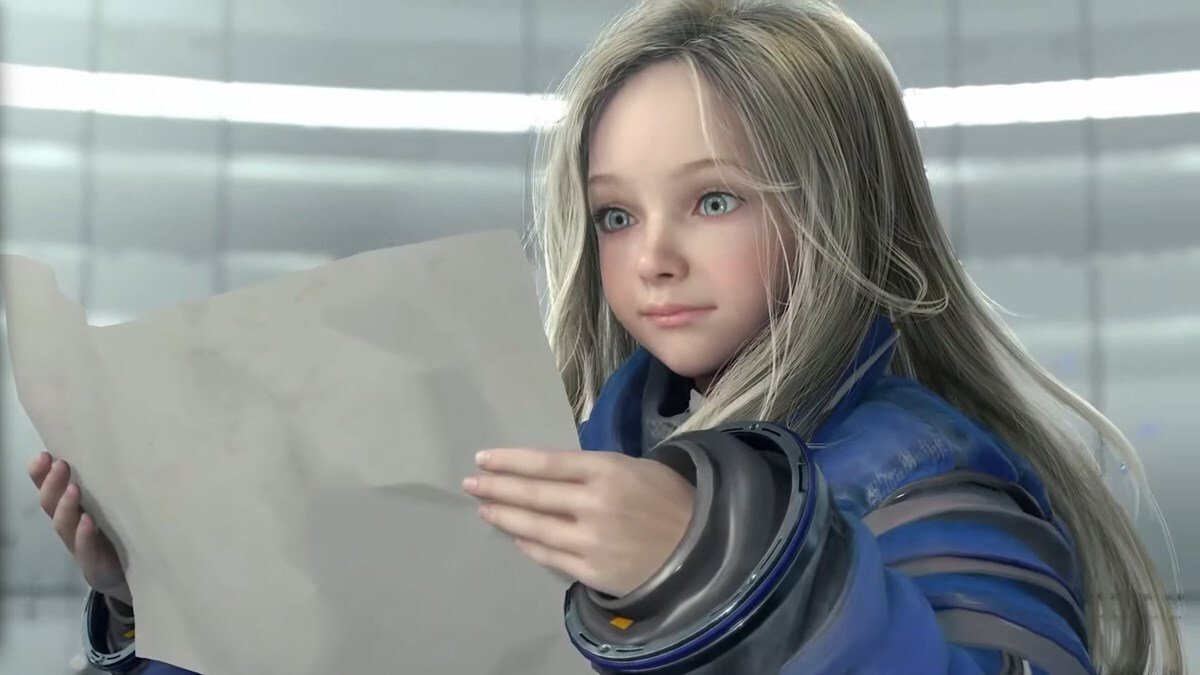
Pragmata is Capcom's newest IP, the one that is finally breaking the chain of incessant sequels, spin-offs, and remake releases that the company had been indulging in for nearly the past decade.
As a level-based game, Pragmata runs exceptionally well on most hardware, even when all the bells and whistles are turned on, seeing as there isn't all too much to render at any given time. It plays into all the optimization strengths of the RE Engine, which thrives precisely in closed-off, linear, and limited environments.
However, we can always squeeze out extra FPS, so here are our recommended settings.
Recommended Pragmata settings for optimal performance
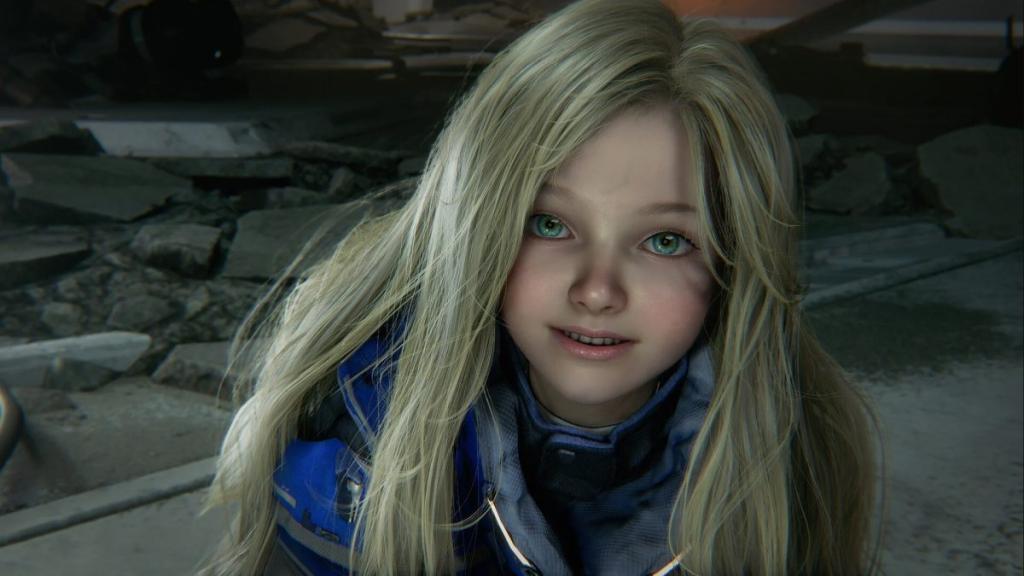 Image via Capcom Pragmata runs on the same engine as Resident Evil: Requiem. If you had luck in that game using those exact settings, replicating them in Pragmata could be useful for you. If, on the other hand, you didn't try that game or are seeing significantly different results in Pragmata, here are the settings I would go with.
 - Frame Rate: Variable
- Ray Tracing: Off (unless on a 4070 or higher GPU)
- Image Quality: 100 percent
- Dynamic Resolution: Off
- Hair Quality: Medium (or High if you have a more capable CPU)
- Texture Quality: High - 2GB (for GPUs with 8GB or less VRAM)
- Texture Filtering: High
- Mesh Quality: Medium/High
- Shadow Quality: Medium
- Shadow Cache: On
- Contact Shadows: Any, Off could net more fps for CPU-limited machines
- Effects Quality: Medium/High
- Video Quality: Full HD
- Anti-Aliasing: FXAA+TAA
- Ambient Occlusion: SSAO, turning it Off could give a solid performance boost to less capable machines
- Volumetric Lighting: Low
- Bloom: Off
- Subsurface Scattering: Off on CPU-limited machines, On otherwise
- Motion Blur, Lens Flare, Lens Distortion, and Depth of Field are all optional and based on preference - I keep them all off.
Path Tracing is reserved only for 4090/5090 users who aren't afraid to use DLSS on a $2,000 GPU, while Frame Generation can also give you some extra frames at the cost of input lag without sacrificing image quality. Of course, using DLSS on Quality can help maintain some of the settings at higher values, but I personally prefer raw quality and use upscales only when absolutely necessary (never).
The post Best Pragmata graphics settings for no lag and max FPS appeared first on Destructoid.
What's Your Reaction?








XINKER - Business and Income Tips
Explore XINKER, the ultimate platform for mastering business strategies, discovering passive income opportunities, and learning success principles. Join a community of thinkers dedicated to achieving financial freedom and entrepreneurial excellence.