

City Corner #10 - Expanding the Modding Tools
Hello Mayors!It’s time for another City Corner, and this time, we will be talking about an aspect in Cities: Skylines II that hasn’t really been touched upon in our previous updates: the Asset Editor. We have started working on improving the modding tools, and there are a number of quality-of-life improvements we want to highlight in this City Corner, like smoother workflows, asset localization, and placement overrides. We will also take a look at the mod support and what our plans are when it comes to managing your mods. Let’s get started, shall we!Smoother Workflows in the EditorLet’s begin with the Editor. For our upcoming patch, we have started working on improving the tools in the Asset Editor, aimed at reducing repetitive clicks and making it easier for creators to navigate and edit their assets. First, we have added a new launch parameter -startEditor to open the Asset Editor on startup. This allows you to launch straight into the editor, without having to go through the Main Menu first. We’ve added controls to expand or collapse all components in the Inspector panel at once, making it much easier to explore an asset’s underlying structure or quickly reach a specific component. Creators can choose whether components are expanded or collapsed by default in the options, use the dedicated buttons, or assign their own shortcut to toggle between the two states.We’ve also reviewed the editor’s Inspector panels to remove unnecessary layers of collapsed containers where possible. Previously, creators could sometimes need to expand a component and then expand another container inside it before reaching the relevant fields. These inner containers are now kept open in many places, removing an extra step from the workflow.Another improvement focuses on the long lists of props and other items attached to assets. Each item in these lists has its own container showing information such as its position or spawn probability. Previously, the item’s name was only visible after expanding that container, which meant creators could have to open many entries across several pages just to find the one they wanted.Item names are now displayed alongside their Element IDs while the containers are collapsed, making lists much easier to scan. We’ve also added a search bar to these lists, allowing creators to filter them by either an item’s name or its Element ID.Related to the previous improvement, selecting a propped item on an asset now displays its Element ID in the Object Info panel alongside information such as its local position and probability. Creators can copy that ID into the list search to quickly locate the corresponding entry.Asset Localization Tool Improvements We’ve made several improvements to the process of adding localized names and descriptions, which is the translated text displayed according to the language in which the game is being played.A new Add All Translations button lets creators add slots for every supported language at once, rather than selecting Add Translation separately for each one. With 12 languages currently supported, this saves a lot of extra clicks for each name or description section.Description fields now properly support multiline text as well. While asset descriptions already supported new lines and paragraphs, the Editor’s input field did not correctly recognize the Enter key as a new line. This has now been fixed, allowing descriptions to be formatted directly inside the Editor.Creators can also copy the localization from one asset and paste it into another. This is particularly helpful when creating multiple variations of the same asset, as the shared text can be transferred in one step instead of copying each field individually or relying on a separate spreadsheet.New Placement Overrides for ProppingOur final highlight for the editor is a new Overrides tool option that becomes available when snapping is enabled while placing props on an asset. It provides three optional overrides that can be applied as each item is placed:Parent Mesh lets creators specify which mesh the prop should be attached to, ensuring that it moves together with that mesh.Group Index lets creators set this technical parameter during placement. Group Index can influence several behaviours, including synchronized spawn probability and colour variation selection, so setting it in advance avoids having to update every placed item individually.Probability lets creators set an item’s spawn probability while placing it.When enabled, it defaults to 100%, ensuring that placed items will always appear unless the creator chooses another value between 1% and 100%.Each override can be enabled independently, or creators can use any combination of the three. This makes it possible to define important properties during placement instead of placing each item first and then editing it individually afterward.Launcher Mod SupportIn addition to the Asset Editor, we are also working on improving the mod support with the help of the P

Hello Mayors!
It’s time for another City Corner, and this time, we will be talking about an aspect in Cities: Skylines II that hasn’t really been touched upon in our previous updates: the Asset Editor. We have started working on improving the modding tools, and there are a number of quality-of-life improvements we want to highlight in this City Corner, like smoother workflows, asset localization, and placement overrides.
We will also take a look at the mod support and what our plans are when it comes to managing your mods. Let’s get started, shall we!
Let’s begin with the Editor. For our upcoming patch, we have started working on improving the tools in the Asset Editor, aimed at reducing repetitive clicks and making it easier for creators to navigate and edit their assets.
First, we have added a new launch parameter -startEditor to open the Asset Editor on startup. This allows you to launch straight into the editor, without having to go through the Main Menu first.
We’ve added controls to expand or collapse all components in the Inspector panel at once, making it much easier to explore an asset’s underlying structure or quickly reach a specific component. Creators can choose whether components are expanded or collapsed by default in the options, use the dedicated buttons, or assign their own shortcut to toggle between the two states.
We’ve also reviewed the editor’s Inspector panels to remove unnecessary layers of collapsed containers where possible. Previously, creators could sometimes need to expand a component and then expand another container inside it before reaching the relevant fields. These inner containers are now kept open in many places, removing an extra step from the workflow.
Another improvement focuses on the long lists of props and other items attached to assets. Each item in these lists has its own container showing information such as its position or spawn probability. Previously, the item’s name was only visible after expanding that container, which meant creators could have to open many entries across several pages just to find the one they wanted.
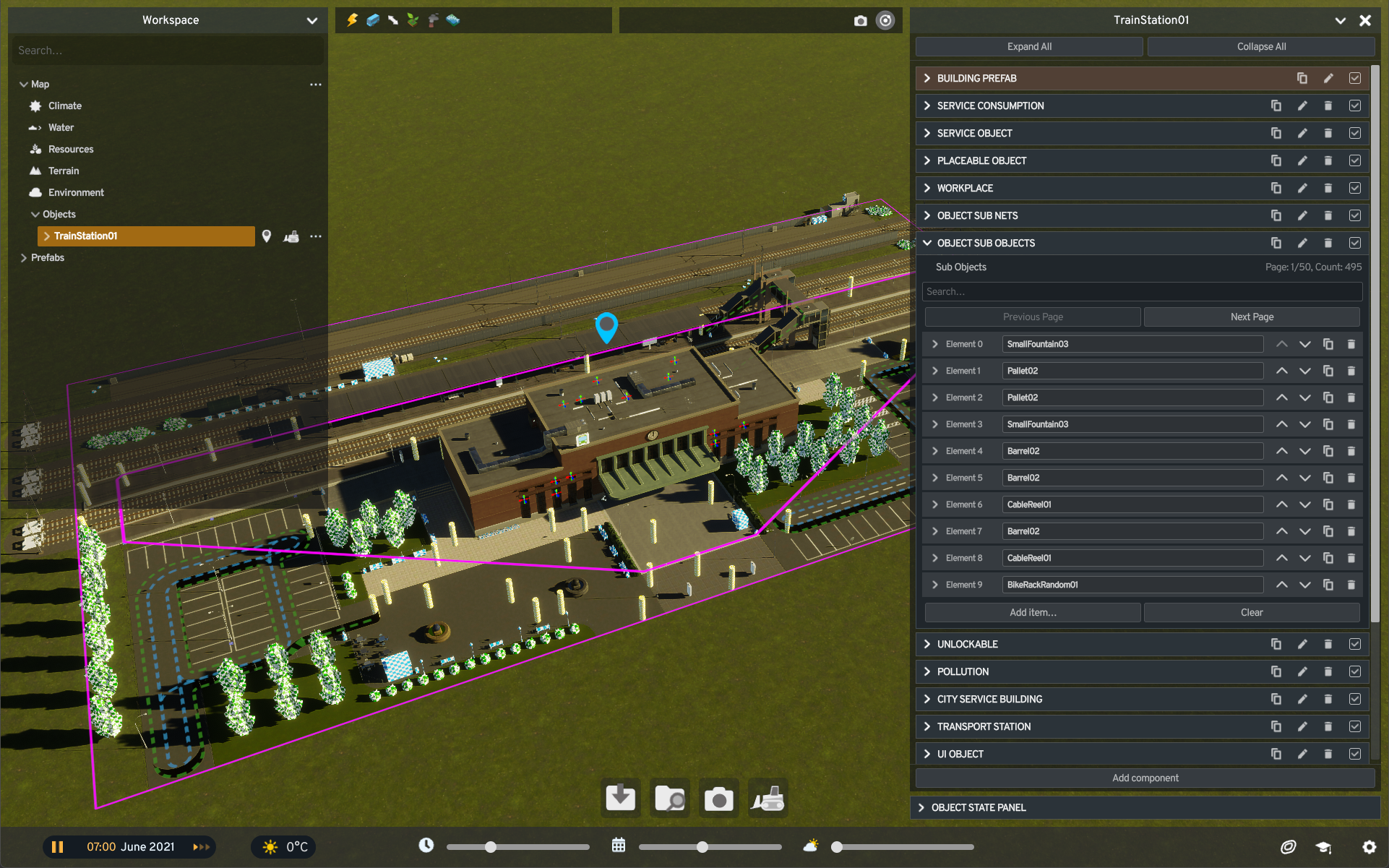
Item names are now displayed alongside their Element IDs while the containers are collapsed, making lists much easier to scan. We’ve also added a search bar to these lists, allowing creators to filter them by either an item’s name or its Element ID.
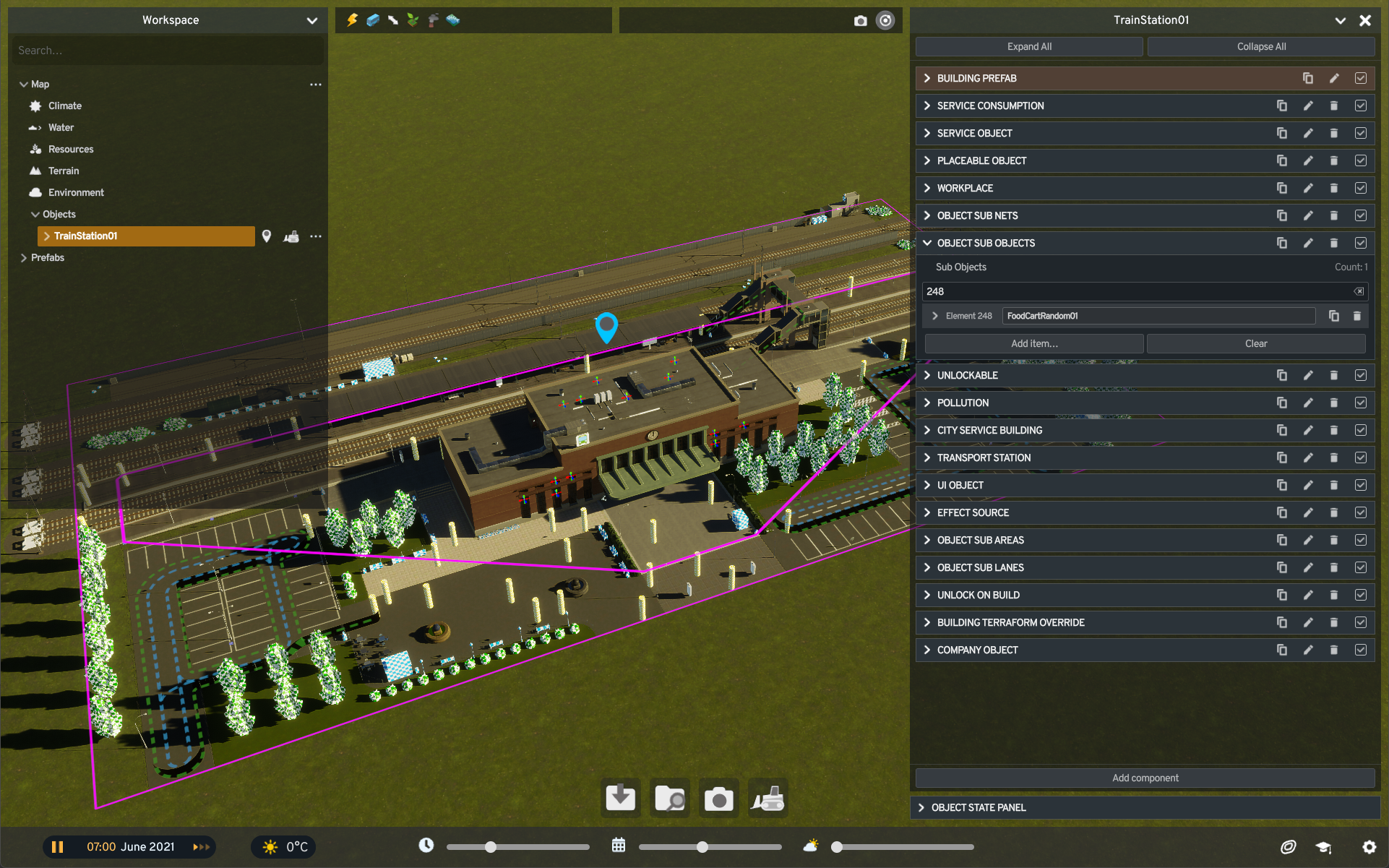
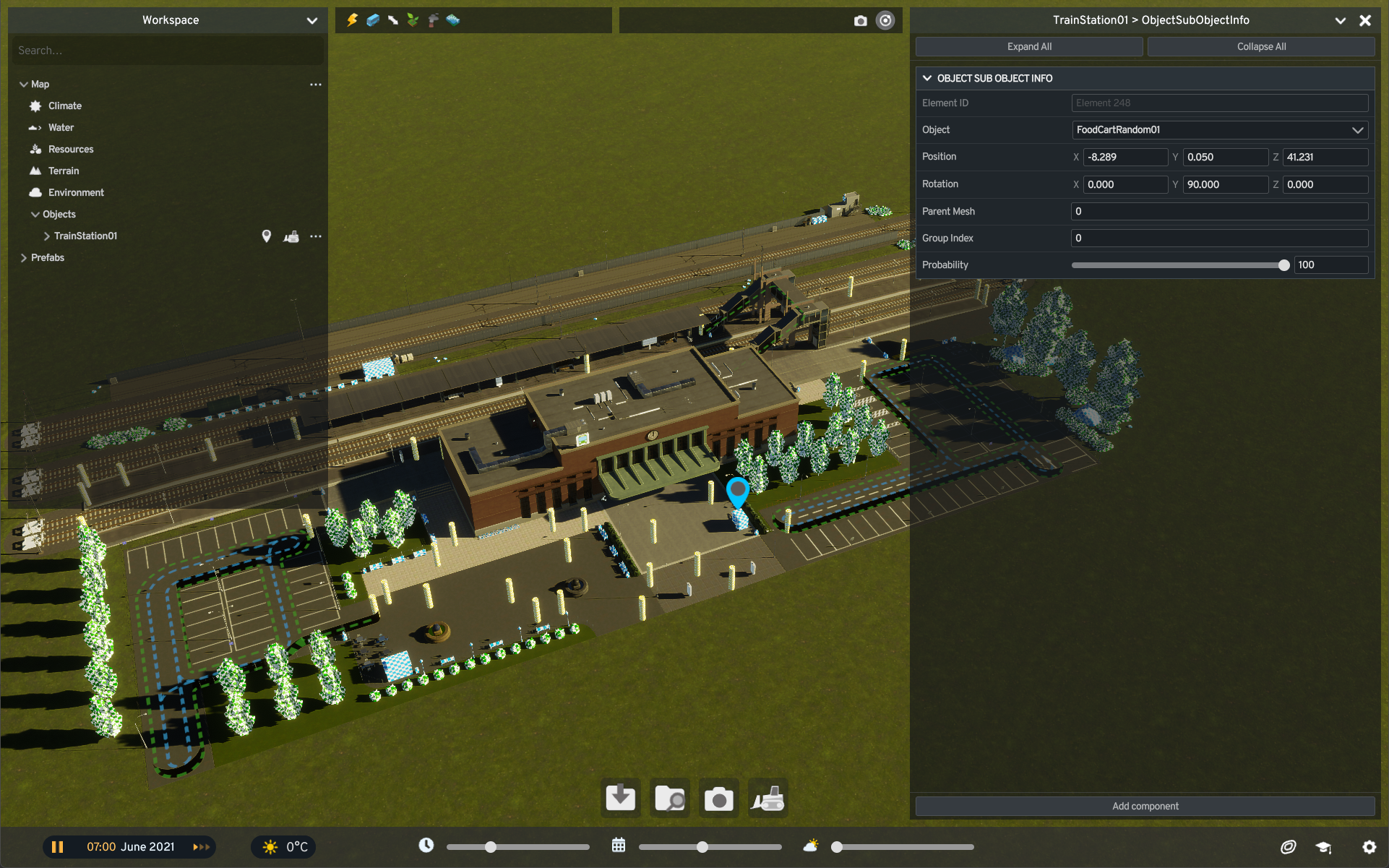
Related to the previous improvement, selecting a propped item on an asset now displays its Element ID in the Object Info panel alongside information such as its local position and probability. Creators can copy that ID into the list search to quickly locate the corresponding entry.
We’ve made several improvements to the process of adding localized names and descriptions, which is the translated text displayed according to the language in which the game is being played.
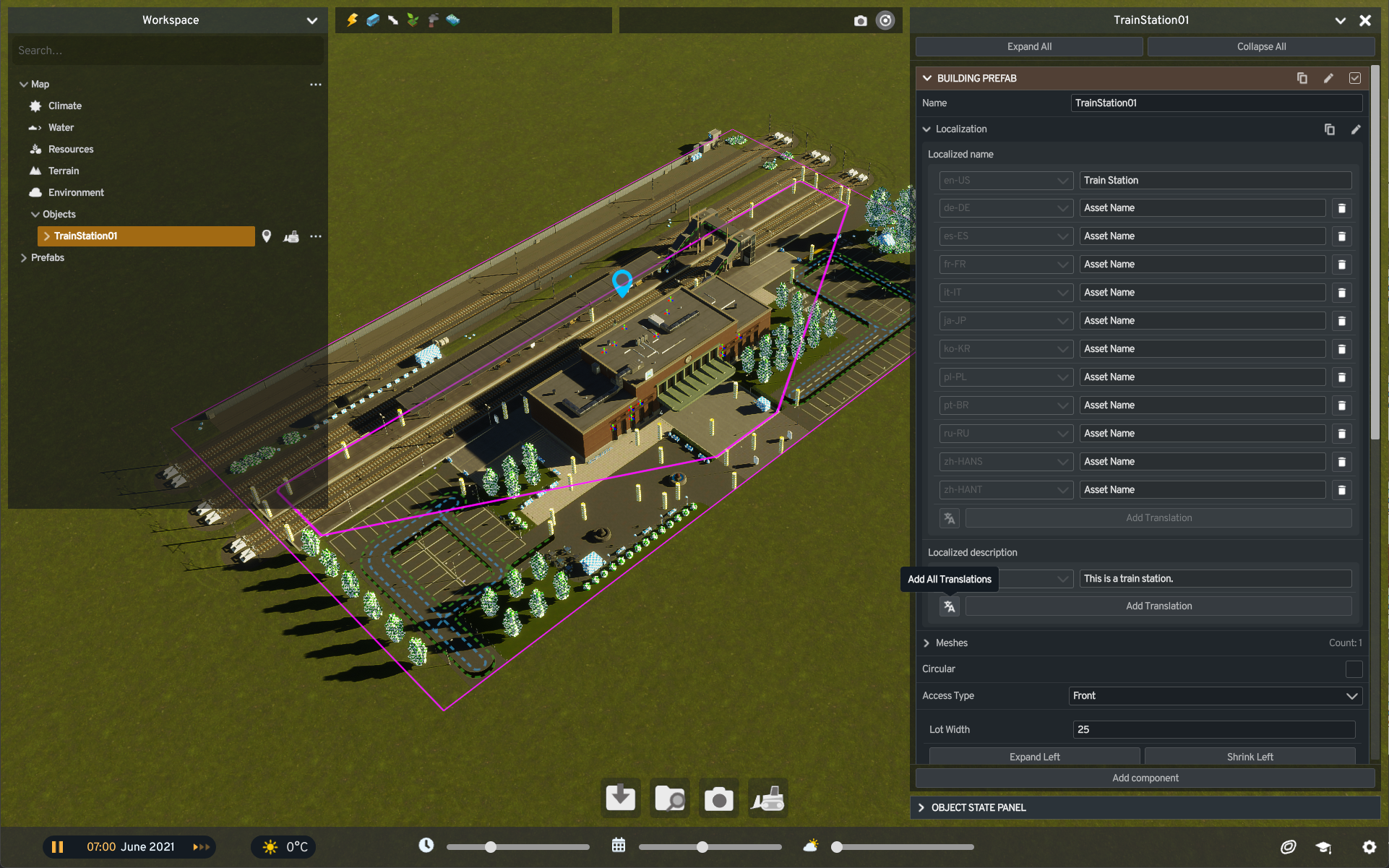
A new Add All Translations button lets creators add slots for every supported language at once, rather than selecting Add Translation separately for each one. With 12 languages currently supported, this saves a lot of extra clicks for each name or description section.
Description fields now properly support multiline text as well. While asset descriptions already supported new lines and paragraphs, the Editor’s input field did not correctly recognize the Enter key as a new line. This has now been fixed, allowing descriptions to be formatted directly inside the Editor.
Creators can also copy the localization from one asset and paste it into another. This is particularly helpful when creating multiple variations of the same asset, as the shared text can be transferred in one step instead of copying each field individually or relying on a separate spreadsheet.
Our final highlight for the editor is a new Overrides tool option that becomes available when snapping is enabled while placing props on an asset. It provides three optional overrides that can be applied as each item is placed:
Parent Mesh lets creators specify which mesh the prop should be attached to, ensuring that it moves together with that mesh.
Group Index lets creators set this technical parameter during placement. Group Index can influence several behaviours, including synchronized spawn probability and colour variation selection, so setting it in advance avoids having to update every placed item individually.
Probability lets creators set an item’s spawn probability while placing it.
When enabled, it defaults to 100%, ensuring that placed items will always appear unless the creator chooses another value between 1% and 100%.
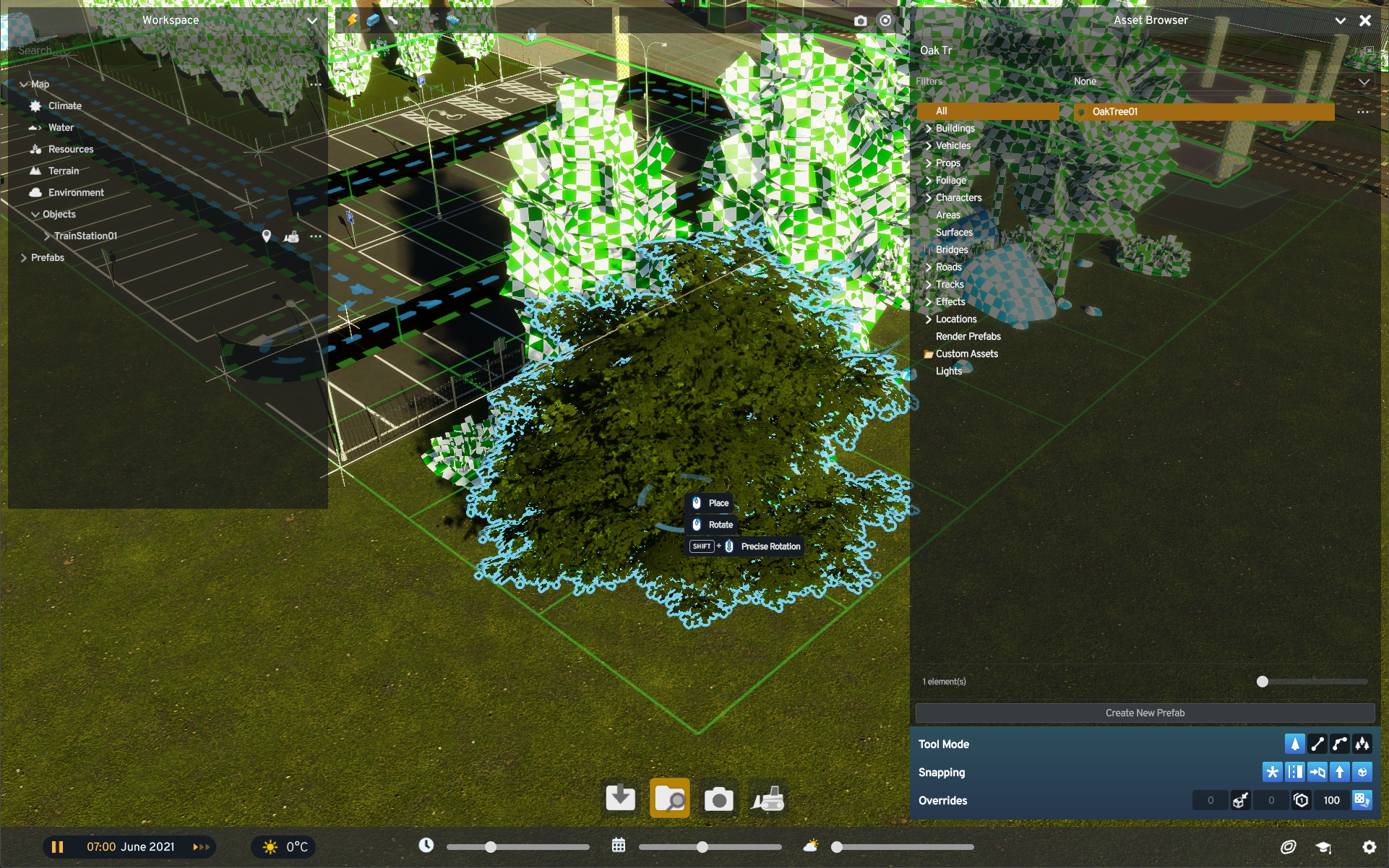
Each override can be enabled independently, or creators can use any combination of the three. This makes it possible to define important properties during placement instead of placing each item first and then editing it individually afterward.
In addition to the Asset Editor, we are also working on improving the mod support with the help of the PDX Mods team. Many of the changes here have been requested by you, and while we don’t have an exact date for these changes yet, we wanted to share the progress with you!
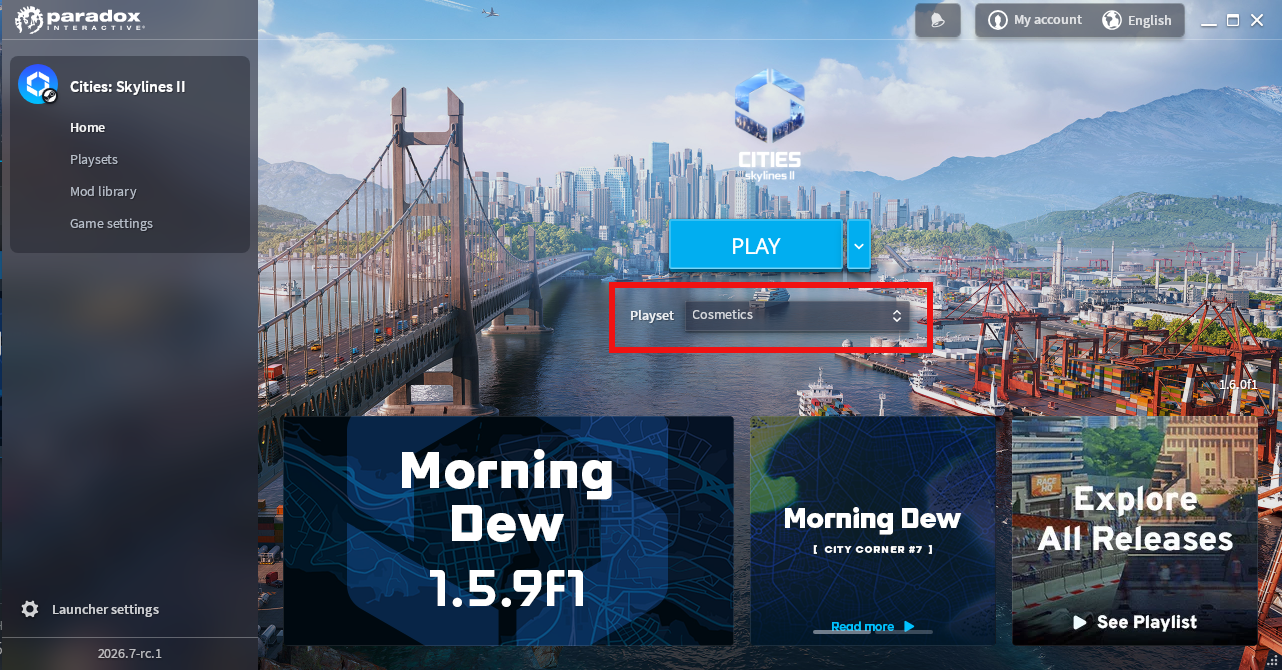
As the title of this section suggests, we are adding a feature to the launcher, which allows you to manage your mods even before starting your game. When the launcher opens up, you can select your active playset. If that playset is somehow corrupted or outdated, the launcher will display a warning, which you can hover over to see what the launcher thinks might be the issue. The launcher will also attempt to update any mods from the PDX Mods backend that you may have installed, or that might be missing from your current computer.
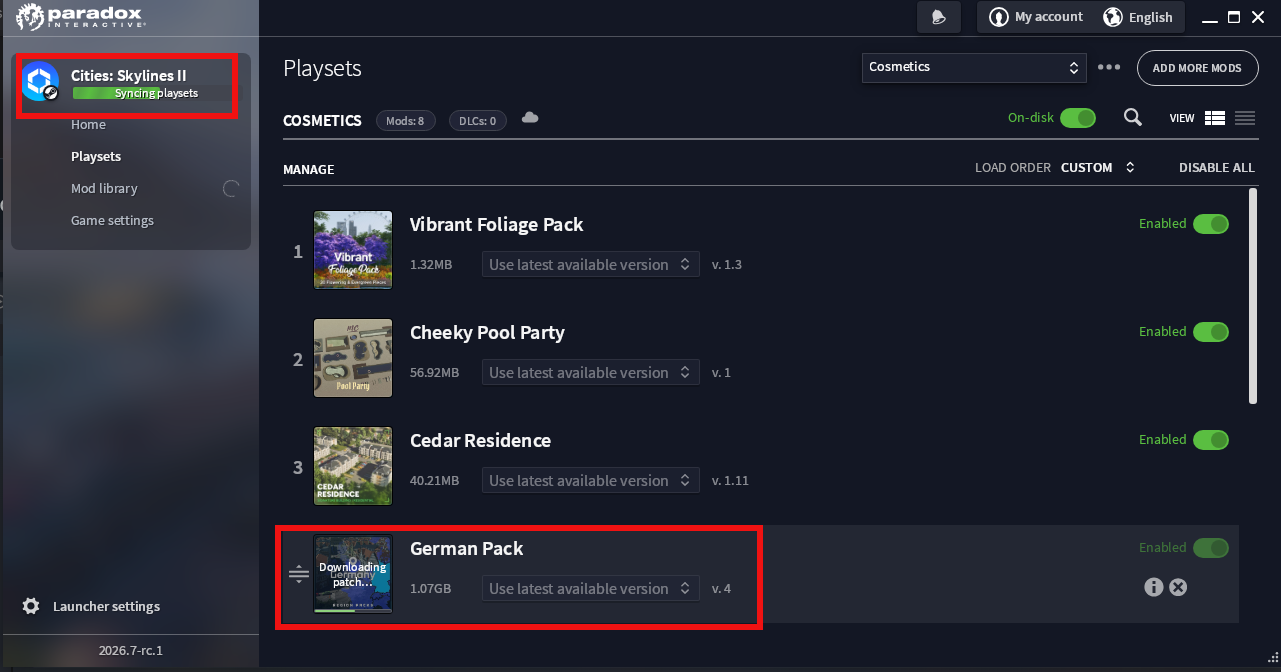
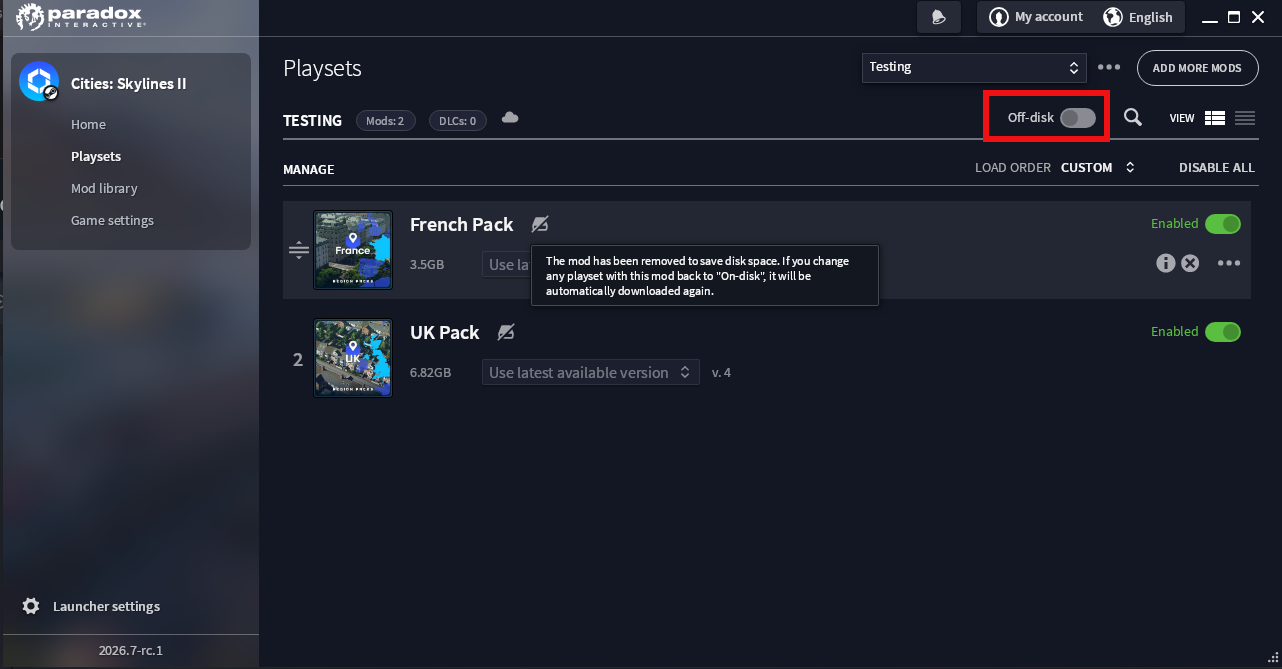
You can also set a playset to be off-disk, which means you will retain your playset, but mods won’t be downloaded and installed. This will be useful for the playsets that you want to keep, but are not actively using. In addition, the launcher will allow you to create new playsets, remove old ones, and edit existing ones. The naming of this feature is still subject to change.
Of course, we’re hoping to expand on these features by adding even more functionality in the future. For example, we’d like to let you change the location of your downloaded mods or spread them across multiple locations, which is something many of you have been requesting! These features are still in the works, but we will keep you in the loop as the development progresses.
Our work on editor improvements, as well as mod support, is guided by feedback shared across our community, on the forums, and from our Creator Program. We look forward to continuing to improve the Editor and Mod experience over time, and if you have any ideas for things that would help you in the future, please let us know!
With that being said, thank you for reading! We hope you have enjoyed this look at what we’ve been working on, and we look forward to sharing more with you. We will be back soon in the next City Corner with more information about our upcoming patch, so stay tuned!
你覺得這篇文章如何?