
Boba Cafe Simulator Post-Launch Q&A Vol. 1
Today, Bingbao has prepared a new FAQ to help all Shop Managers solve some of the most common issues!Q1: My friends and I have different game versions. How do I update the game?Method 1: Restart Steam Completely exit Steam (Steam → Exit). Launch Steam again. Steam will automatically check for and download any available game updates.Method 2: Update the game manually Open Steam and go to your Library. Find Boba Cafe Simulator. If an update is available, click the Update button. Launch the game after the update has finished downloading.Method 3: Force Steam to check for updatesIf you don't see an Update button: Right-click Boba Cafe Simulator in your Steam Library and select Properties. Go to Installed Files → Verify integrity of game files. Steam will check your installation and download any missing or updated files.Method 4: Launch the game without administrator privileges Open Steam → Library → Boba Cafe Simulator → Properties → Installed Files → Click Browse. Right-click the game executable → Properties → Compatibility → Disable Run this program as an administrator. Launch the game again.If none of the methods above work, your Steam installation may have been modified by previously installing an unofficial Steam package. In this case, you'll need to reinstall Steam. Completely uninstall Steam and remove all Steam files before reinstalling the official client. Delete the registry key: HKEY_CURRENT_USER\Software\Valve\Steam\Steamtools. Delete hid.dll and zlib1.dll from your Steam installation folder. Enter %APPDATA% in File Explorer and delete the Stool folder. Delete steam.cfg from the Steam installation directory to restore the official Steam configuration.How do I check whether we're on the same version?On the game's main menu, check the version number displayed at the bottom of the screen.Before playing together, make sure every player is running exactly the same game version, otherwise multiplayer will not work properly.Q2: Why do I get a black screen when joining multiplayer?This is usually caused by long loading times due to a large number of items, active orders, or customers in the host's shop.We recommend organizing your inventory or inviting friends before opening the shop.Tips: Try using the same VPN/Game Booster server or network route if possible. If you're using Mods, make sure the host and every player have subscribed to exactly the same Mods. Otherwise, the game may fail to load properly.Q3: Why can I join public lobbies but not my friend's lobby?This is usually caused by network connectivity.Steam's public lobbies are generally hosted on servers with better network routing, making them easier to join.If you cannot join a friend's game, try the following: Use the same VPN/Game Booster and server location. Make sure everyone is using the same game version. Check that everyone has subscribed to the exact same Mods. Restart Steam and send the invitation again.Q4: Why can't my friends join after I installed Mods?If the host is using Mods, every player joining the session must also have the exact same Mods installed.Otherwise, players may encounter a black screen or be unable to join the multiplayer session.Q5: The game won't launch and shows an error message. What should I do?In some cases, Windows Security may block the game from launching.You can try the following:Windows Security → App & browser control → Smart App Control → Turn it OffThen restart the game and test again.If the game launches normally, you can re-enable this feature afterward if you wish.Q6: My game is acting strangely after installing Mods.We are aware that some Mods may cause the following issues:The game won't launch.Black screen on startup.Incorrect drink colors.Drinks are always made incorrectly.Multiplayer issues or inability to join rooms.Certain drinks cannot be made (such as Apple Peach Tea).Water from bottled water dispensers cannot be poured into containers.If you experience any of the issues above, the first thing you should check is whether you have any Mods installed.Q7: What should I keep in mind before publishing a Mod?Before uploading your Mod, please test it thoroughly and make sure that:The game launches normally.Drink making, multiplayer, and other gameplay features work correctly.The Mod does not negatively affect other players' gameplay.Only publish your Mod after confirming everything works properly.Q8: Why do I still have bugs after unsubscribing from a Mod?Simply unsubscribing from a Mod is not enough—you also need to delete its local files.Step 1: Unsubscribe from the Mod in SteamOpen Steam → Library → Boba Cafe Simulator.Click Workshop on the right.Open Subscribed Items.Find the Mod you want to remove and click Unsubscribe.Steam may not immediately remove the downloaded Mod files from your computer.Step 2: Exit the game and SteamBefore deleting any files:Close the game.Completely exit Steam (Steam → Exit).This prevents the files from being locked by Steam.Step 3: Delete the local Mod filesOpen Stea
Today, Bingbao has prepared a new FAQ to help all Shop Managers solve some of the most common issues!
If you don't see an Update button:
If none of the methods above work, your Steam installation may have been modified by previously installing an unofficial Steam package. In this case, you'll need to reinstall Steam.
How do I check whether we're on the same version?
On the game's main menu, check the version number displayed at the bottom of the screen.
Before playing together, make sure every player is running exactly the same game version, otherwise multiplayer will not work properly.
This is usually caused by long loading times due to a large number of items, active orders, or customers in the host's shop.
We recommend organizing your inventory or inviting friends before opening the shop.
Tips:
This is usually caused by network connectivity.
Steam's public lobbies are generally hosted on servers with better network routing, making them easier to join.
If you cannot join a friend's game, try the following:
If the host is using Mods, every player joining the session must also have the exact same Mods installed.
Otherwise, players may encounter a black screen or be unable to join the multiplayer session.
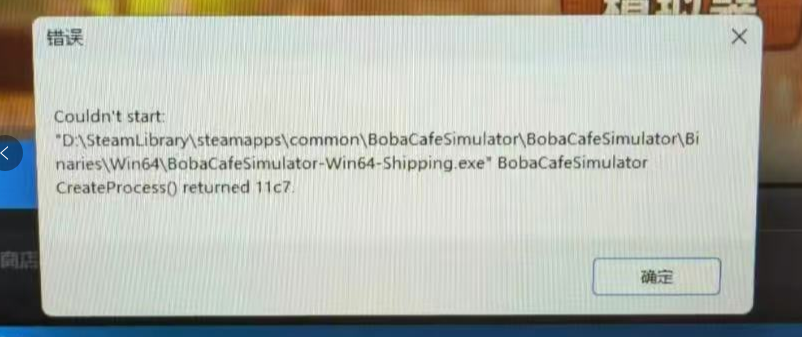
In some cases, Windows Security may block the game from launching.
You can try the following:
Windows Security → App & browser control → Smart App Control → Turn it Off
Then restart the game and test again.
If the game launches normally, you can re-enable this feature afterward if you wish.
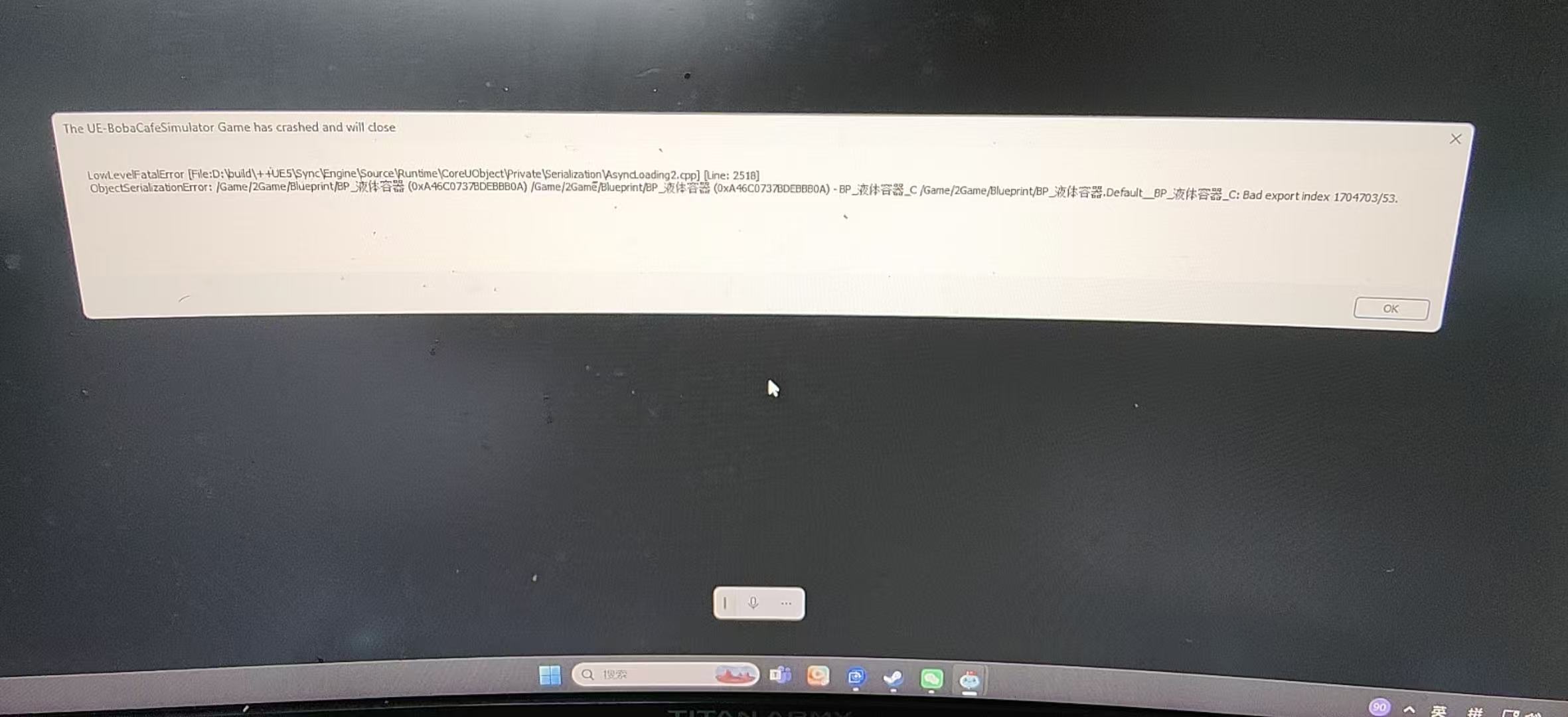
We are aware that some Mods may cause the following issues:
If you experience any of the issues above, the first thing you should check is whether you have any Mods installed.
Before uploading your Mod, please test it thoroughly and make sure that:
Simply unsubscribing from a Mod is not enough—you also need to delete its local files.
Or use the automatic repair tool:
Completely exit the game, then open:
Steam\steamapps\workshop\content\3683770\3773644355
Run:
Fix_Crash_Remove_Stale_Mod_Files.cmd
Then press Y.
To prevent Demo cloud saves from overwriting Full Version cloud saves, we have disabled cloud saving for the Demo.
Currently:

The game is still loading.
This may happen if your device has limited available memory, which can significantly increase loading times.
Purchase a Drying Rack from the Farm App.
Place fish on the drying rack and wait until the next in-game day.
The fish will become Dried Fish, which can be used to trade with NPCs for various resources.
Books refresh randomly.
Simply refresh the shop a few more times.
Special books have a different appearance from regular books, making them relatively easy to identify.
Currently:
Press ESC to open the menu, then click Reset Items.
Currently, this feature can restore:
???? If you have any other questions, you can use the Feedback button on the game's main menu.
Feedback submitted through the game will be prioritized by our team.
Thank you all for your support and cooperation!
Q1: My friends and I have different game versions. How do I update the game?
Method 1: Restart Steam
- Completely exit Steam (Steam → Exit).
- Launch Steam again.
- Steam will automatically check for and download any available game updates.
Method 2: Update the game manually
- Open Steam and go to your Library.
- Find Boba Cafe Simulator.
- If an update is available, click the Update button.
- Launch the game after the update has finished downloading.
Method 3: Force Steam to check for updates
If you don't see an Update button:
- Right-click Boba Cafe Simulator in your Steam Library and select Properties.
- Go to Installed Files → Verify integrity of game files.
- Steam will check your installation and download any missing or updated files.
Method 4: Launch the game without administrator privileges
- Open Steam → Library → Boba Cafe Simulator → Properties → Installed Files → Click Browse.
- Right-click the game executable → Properties → Compatibility → Disable Run this program as an administrator.
- Launch the game again.
If none of the methods above work, your Steam installation may have been modified by previously installing an unofficial Steam package. In this case, you'll need to reinstall Steam.
- Completely uninstall Steam and remove all Steam files before reinstalling the official client.
- Delete the registry key: HKEY_CURRENT_USER\Software\Valve\Steam\Steamtools.
- Delete hid.dll and zlib1.dll from your Steam installation folder.
- Enter %APPDATA% in File Explorer and delete the Stool folder.
- Delete steam.cfg from the Steam installation directory to restore the official Steam configuration.
How do I check whether we're on the same version?
On the game's main menu, check the version number displayed at the bottom of the screen.
Before playing together, make sure every player is running exactly the same game version, otherwise multiplayer will not work properly.
Q2: Why do I get a black screen when joining multiplayer?
This is usually caused by long loading times due to a large number of items, active orders, or customers in the host's shop.
We recommend organizing your inventory or inviting friends before opening the shop.
Tips:
- Try using the same VPN/Game Booster server or network route if possible.
- If you're using Mods, make sure the host and every player have subscribed to exactly the same Mods. Otherwise, the game may fail to load properly.
Q3: Why can I join public lobbies but not my friend's lobby?
This is usually caused by network connectivity.
Steam's public lobbies are generally hosted on servers with better network routing, making them easier to join.
If you cannot join a friend's game, try the following:
- Use the same VPN/Game Booster and server location.
- Make sure everyone is using the same game version.
- Check that everyone has subscribed to the exact same Mods.
- Restart Steam and send the invitation again.
Q4: Why can't my friends join after I installed Mods?
If the host is using Mods, every player joining the session must also have the exact same Mods installed.
Otherwise, players may encounter a black screen or be unable to join the multiplayer session.
Q5: The game won't launch and shows an error message. What should I do?
In some cases, Windows Security may block the game from launching.
You can try the following:
Windows Security → App & browser control → Smart App Control → Turn it Off
Then restart the game and test again.
If the game launches normally, you can re-enable this feature afterward if you wish.
Q6: My game is acting strangely after installing Mods.
We are aware that some Mods may cause the following issues:
- The game won't launch.
- Black screen on startup.
- Incorrect drink colors.
- Drinks are always made incorrectly.
- Multiplayer issues or inability to join rooms.
- Certain drinks cannot be made (such as Apple Peach Tea).
- Water from bottled water dispensers cannot be poured into containers.
If you experience any of the issues above, the first thing you should check is whether you have any Mods installed.
Q7: What should I keep in mind before publishing a Mod?
Before uploading your Mod, please test it thoroughly and make sure that:
- The game launches normally.
- Drink making, multiplayer, and other gameplay features work correctly.
- The Mod does not negatively affect other players' gameplay.
- Only publish your Mod after confirming everything works properly.
Q8: Why do I still have bugs after unsubscribing from a Mod?
Simply unsubscribing from a Mod is not enough—you also need to delete its local files.
Step 1: Unsubscribe from the Mod in Steam
- Open Steam → Library → Boba Cafe Simulator.
- Click Workshop on the right.
- Open Subscribed Items.
- Find the Mod you want to remove and click Unsubscribe.
- Steam may not immediately remove the downloaded Mod files from your computer.
Step 2: Exit the game and Steam
- Before deleting any files:
- Close the game.
- Completely exit Steam (Steam → Exit).
- This prevents the files from being locked by Steam.
Step 3: Delete the local Mod files
- Open Steam → Library → Boba Cafe Simulator → Properties → Installed Files → Browse.
- Go to:
\Steam\steamapps\common\BobaCafeSimulator\BobaCafeSimulator\Content\Paks
and delete the corresponding Mod folder. - If you're not sure which folder belongs to which Mod:
Delete them all (recommended).
Steam will automatically redownload the Mods you're still subscribed to.
Or use the automatic repair tool:
Completely exit the game, then open:
Steam\steamapps\workshop\content\3683770\3773644355
Run:
Fix_Crash_Remove_Stale_Mod_Files.cmd
Then press Y.
Step 4: Restart Steam
- Launch Steam again.
- Mods you're still subscribed to will automatically download again.
- Mods you've unsubscribed from will no longer appear.
Q9: Why is my Demo save file gone?
To prevent Demo cloud saves from overwriting Full Version cloud saves, we have disabled cloud saving for the Demo.
Currently:
- The Demo only supports local saves.
- If you switch to another computer, your Demo save will not sync automatically. You'll need to manually transfer your old save files.
- To carry your Demo progress into the Full Version, your device must still contain the Demo's local save files. Otherwise, you'll start a brand-new game.
Q10: I transferred my save file, but I can't find it in the game.
- Do not change the file extension or file attributes, otherwise the save may not be recognized.
- We recommend compressing the save file before sending it to another device.
- If a save file with the same name already exists, replace the existing file.
- To avoid overwriting your current saves, we recommend manually renaming or placing the transferred save into an empty save slot.
Q11: The game shows the following loading screen for a long time.
The game is still loading.
This may happen if your device has limited available memory, which can significantly increase loading times.
Q12: How do I get Dried Fish?
Purchase a Drying Rack from the Farm App.
Place fish on the drying rack and wait until the next in-game day.
The fish will become Dried Fish, which can be used to trade with NPCs for various resources.
Q13: How do books refresh in Yan Ruyu's Bookstore?
Books refresh randomly.
Simply refresh the shop a few more times.
Special books have a different appearance from regular books, making them relatively easy to identify.
Q14: Can I customize the logo on delivery bags or the sealing machine?
Currently:
- The logos on delivery bags and the cup sealing machine cannot be customized.
- Cup logos and sealing film logos can be freely customized.
Q15: My items disappeared. How can I get them back?
Press ESC to open the menu, then click Reset Items.
Currently, this feature can restore:
- Takeout Receipt Printer
- Fishing Rod
- Hand Cart
???? If you have any other questions, you can use the Feedback button on the game's main menu.
Feedback submitted through the game will be prioritized by our team.
Thank you all for your support and cooperation!
你覺得這篇文章如何?








XINKER - Business and Income Tips
Explore XINKER, the ultimate platform for mastering business strategies, discovering passive income opportunities, and learning success principles. Join a community of thinkers dedicated to achieving financial freedom and entrepreneurial excellence.